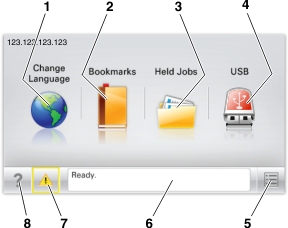
When the printer is turned on, the display shows a basic screen, referred to as the home screen. Use the home screen buttons and icons to initiate an action.
| Note: Your home screen, icons, and the buttons may vary depending on your home screen customization settings, administrative setup, and active embedded solutions. |
Touch | To | |
|---|---|---|
1 | Change Language | Change the primary language of the printer. |
2 | Bookmarks | Create, organize, and save a set of bookmarks (URLs) into a tree view of folders and file links. Note: The tree view does not include bookmarks created within Forms and Favorites, and the ones in the tree are not usable in Forms and Favorites. |
3 | Held Jobs | Display all current held jobs. |
4 | USB or USB Thumbdrive | View, select, or print photos and documents from a flash drive. Note: This icon appears only when you return to the home screen while a memory card or flash drive is connected to the printer. |
5 | Menus | Access printer menus. Note: These menus are available only when the printer is in the Ready state. |
6 | Status message bar |
|
7 | Status/Supplies |
|
8 | Tips | Open a context-sensitive Help information on the touch screen. |
This may also appear on the home screen:
Touch | To |
|---|---|
Search Held Jobs | Search current held jobs. |
Feature | Description |
|---|---|
Attendance message alert  | If an attendance message affects a function, then this icon appears and the red indicator light blinks. |
Warning  | If an error condition occurs, then this icon appears. |
Printer IP address Sample: | The IP address of your network printer is located at the top left corner of the home screen and appears as four sets of numbers separated by periods. You can use the IP address when accessing the Embedded Web Server so you can view and remotely configure printer settings even when you are not physically near the printer. |