Replacing parts and supplies

Replacing a toner cartridge

  1. Open the front door.

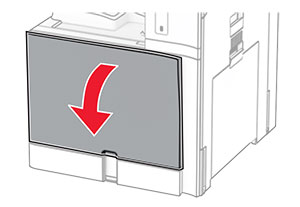
    The front door is pulled down.
  2. Remove the used toner cartridge.

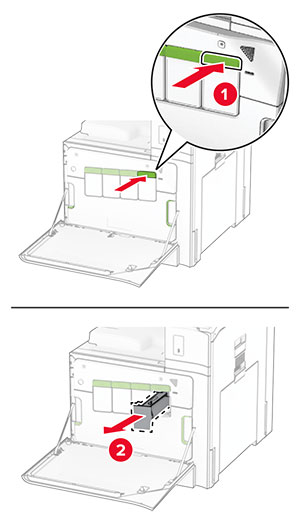
    The green buttons are pushed, and then the cartridges are pulled out from the printer.
  3. Unpack the new toner cartridge.

  4. Insert the new toner cartridge until it clicks into place.
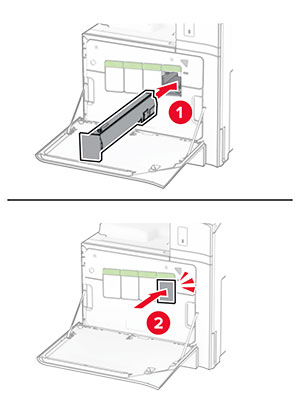
    Toner cartridge is aligned, and then slid into the printer.
  5. Close the door.

Replacing the black imaging unit

  1. Open the front door.

    The front door is pulled down.
  2. Remove the toner cartridges.

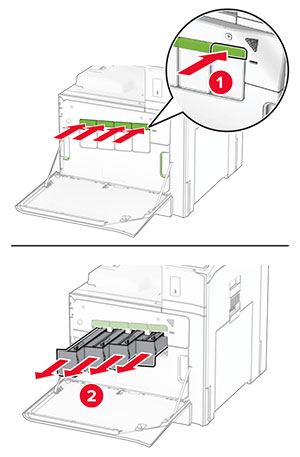
    The green buttons are pushed, and then the cartridges are pulled out from the printer.
  3. Remove the waste toner bottle.

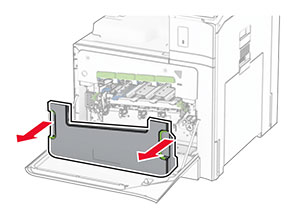
    Both sides of the waste toner bottle are grasped, and then the bottle is pulled out.
    Note:  To avoid spilling the toner, place the bottle in an upright position.
    Proper position of the waste toner bottle upon removal from the printer.
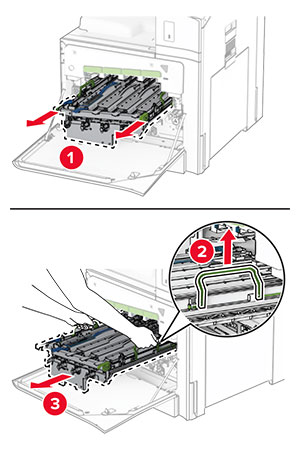
  4. Remove the imaging kit.

    The green latches of imaging kit are grasped and lifted, and the imaging kit is pulled out of the printer.
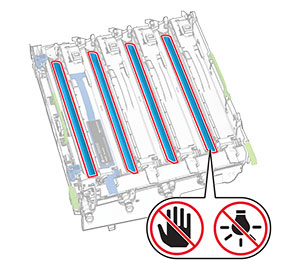
    Warning—Potential Damage:  Do not expose the imaging kit to direct light. Extended exposure to light may cause print quality problems.
    Warning—Potential Damage:  Do not touch the photoconductor drum. Doing so may affect the quality of future print jobs.
    A do not touch icon on the photoconductor drum.
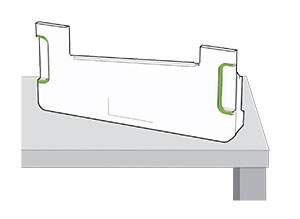
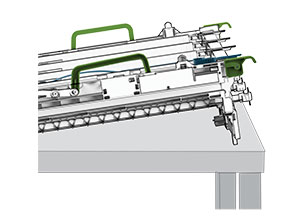
    Note:  Place the imaging kit on a clean, flat surface and in an upright position to avoid scratching or damaging the photoconductor drum.
    Proper position of the imaging kit after it is removed from the printer.
  5. Unlock the used black imaging unit.
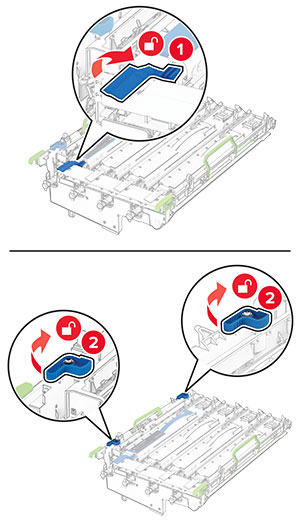
    The blue latches of the black imaging unit are unlocked.
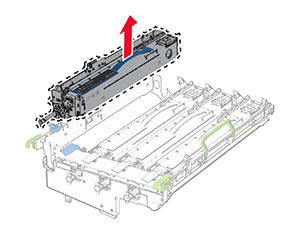
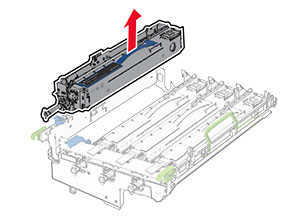
  6. Remove the used black imaging unit.

    The used imaging unit is pulled out, and then removed from the imaging kit.
  7. Unpack the new black imaging unit.

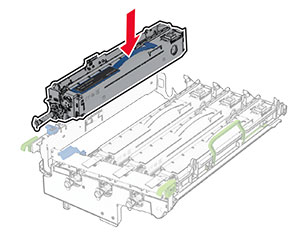
  8. Insert the new black imaging unit.

    The new imaging unit is inserted into the imaging kit.
  9. Lock the new black imaging unit in place.
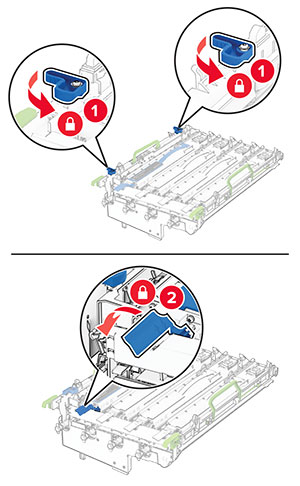
    The blue latches of the imaging unit are locked.
  10. Insert the imaging kit until it is fully seated.
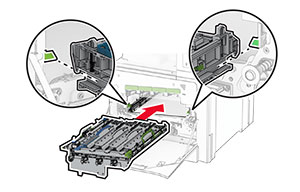
    The imaging kit is inserted into the printer.
  11. Insert the waste toner bottle until it clicks into place.
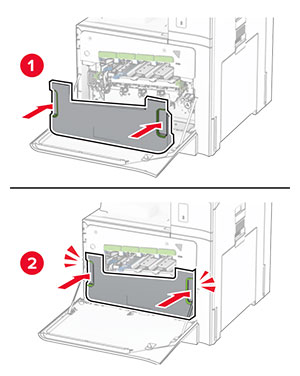
    The waste toner bottle is attached to the printer.
  12. Gently pull out the printhead wipers, and then clean the printhead lenses.
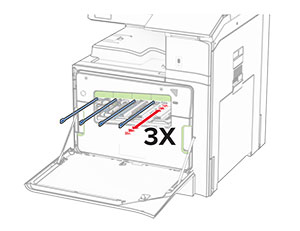
    The printhead wipers are pulled out, and then the printhead lenses are cleaned.

    For more information on cleaning the printhead lenses, see Cleaning the printhead lenses .

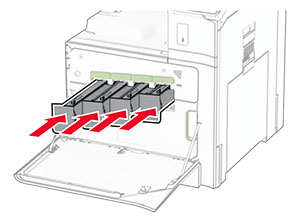
  13. Insert the toner cartridges.

    The toner cartridges are inserted into the printer.
  14. Close the door.

Replacing the color imaging kit

  1. Open the front door.

    The front door is pulled down.
  2. Remove the toner cartridges.

    The green buttons are pushed, and then the cartridges are pulled out from the printer.
  3. Remove the waste toner bottle.

    Both sides of the waste toner bottle are grasped, and then the bottle is pulled out.
    Note:  To avoid spilling the toner, place the bottle in an upright position.
    Proper position of the waste toner bottle after it is removed from the printer.
  4. Remove the used imaging kit.

    The green latches of imaging kit are grasped and lifted, and the used imaging kit is pulled out of the printer.
    Note:  Place the imaging kit on a clean, flat surface and in an upright position to avoid scratching or damaging the photoconductor drum.
    Proper position of the imaging kit after it is removed from the printer.
  5. Unlock the black imaging unit.

    The blue latches of the black imaging unit are unlocked.
  6. Remove the black imaging unit.

    The imaging unit is pulled out, and then removed from the imaging kit.
    Note:  Do not throw away the black imaging unit. It will be installed on the new imaging kit.
  7. Unpack the new imaging kit.

    Note:  The imaging kit includes the imaging basket and the cyan, magenta, and yellow developer units.
    Warning—Potential Damage:  Do not expose the imaging kit to direct light. Extended exposure to light may cause print quality problems.
    Warning—Potential Damage:  Do not touch the photoconductor drum. Doing so may affect the quality of future print jobs.
    Warning icons are placed on the photoconductor drum.
  8. Insert the black imaging unit into the new imaging kit.

    The imaging unit is inserted into the imaging kit.
  9. Lock the black imaging unit in place.

    The blue latches of the imaging unit are locked.
  10. Insert the new imaging kit until it is fully seated.

    The imaging kit is inserted into the printer.
  11. Insert the waste toner bottle until it clicks into place.

    The waste toner bottle is attached to the printer.
  12. Gently pull out the printhead wipers, and then clean the printhead lenses.

    The printhead wipers are pulled out, and then the printhead lenses are cleaned.

    For more information on cleaning the printhead lenses, see Cleaning the printhead lenses .

  13. Insert the toner cartridges.

    The toner cartridges are inserted into the printer.
  14. Close the door.

Replacing the waste toner bottle

  1. Open the front door.

    The front door is pulled down.
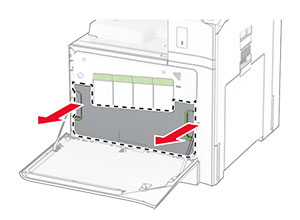
  2. Remove the used waste toner bottle.

    Both sides of the waste toner bottle are grasped, and then the bottle is pulled out.
    Note:  To avoid spilling the toner, place the bottle in an upright position.
    Proper position of the waste toner bottle after it is removed from the printer.
  3. Unpack the new waste toner bottle.

  4. Insert the new waste toner bottle until it clicks into place, and then close the door.
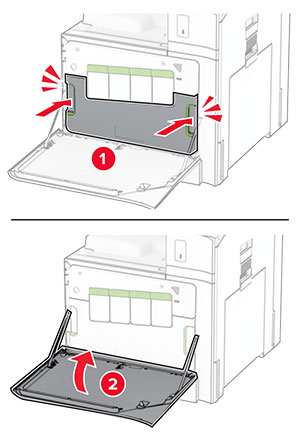
    The waste toner bottle is attached to the printer.

Replacing the fuser

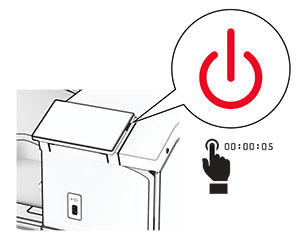
  1. Turn off the printer.

    The power button on the side of the control panel is pressed for 5 seconds.
  2. Unplug the power cord from the electrical outlet, and then from the printer.

  3. Open door B.

    hot surface caution icon   CAUTION—HOT SURFACE:  The inside of the printer might be hot. To reduce the risk of injury from a hot component, allow the surface to cool before touching it.
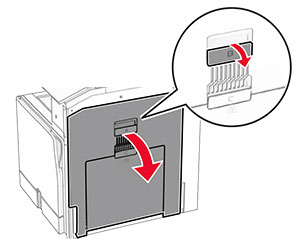
    Door B of the printer is opened.
  4. Unlock, and then remove the used fuser.
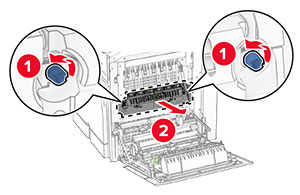
    The blue knobs are rotated counterclockwise, and then the used fuser is pulled out of the printer.
  5. Unpack the new fuser.

  6. Insert the new fuser until it clicks into place, and then lock it.
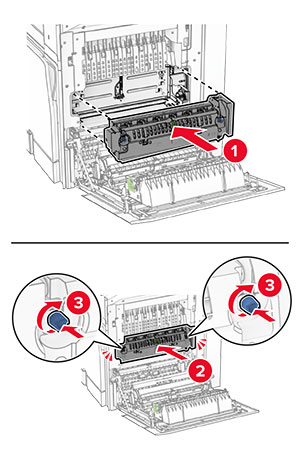
    The fuser is aligned, inserted into the printer, and then locked.
  7. Close door B.

  8. Connect one end of the power cord to the printer, and then the other end to the electrical outlet.

    standard caution icon   CAUTION—POTENTIAL INJURY:  To avoid the risk of fire or electrical shock, connect the power cord to an appropriately rated and properly grounded electrical outlet that is near the product and easily accessible.
  9. Turn on the printer.

Replacing the tray insert

  1. Pull out the used tray insert.

    The used tray insert is removed from the printer with an upward motion.
  2. Unpack the new tray insert.

  3. Insert the new tray insert.

    The new tray insert is inserted to the printer with a downward motion.

Replacing the size guides in the optional 550-sheet tray

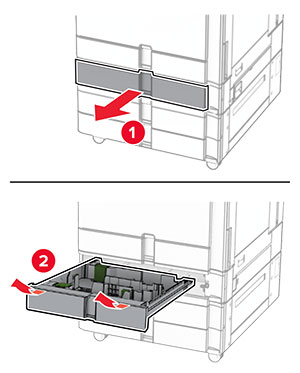
  1. Pull out the tray.

    The optional tray is removed from the printer.
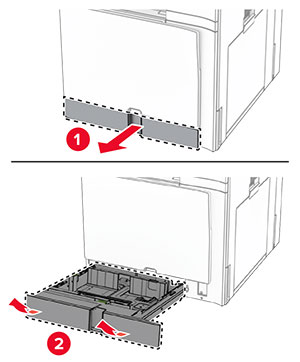
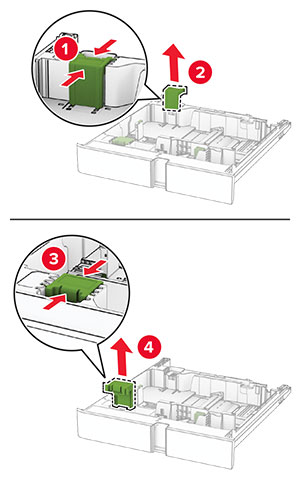
  2. Remove the used size guides.

    The used size guides are removed from the optional tray.
  3. Unpack the new size guides.

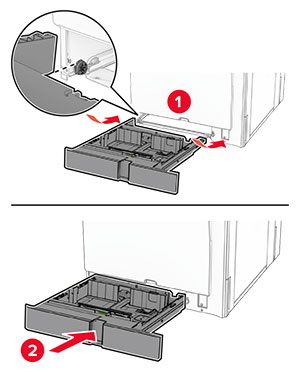
  4. Insert the new size guides until they click into place.
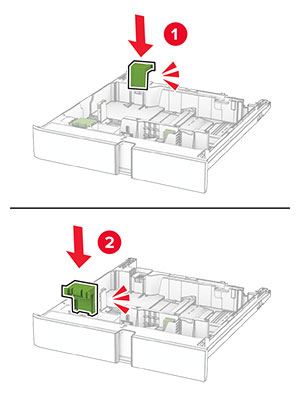
    The new size guides are inserted into the optional tray.
  5. Insert the tray.

Replacing the cover in the optional 550-sheet tray

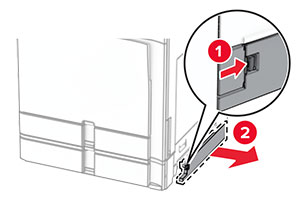
  1. Remove the used tray cover.

    The used cover for the optional 550-sheet tray is removed.
  2. Unpack the new tray cover.

  3. Insert the new tray cover until it clicks into place.
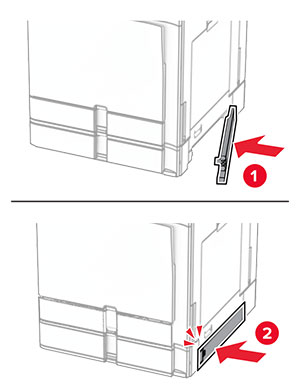
    The new cover for the optional 550-sheet tray is attached to the printer.

Replacing the booklet finisher top bin extension

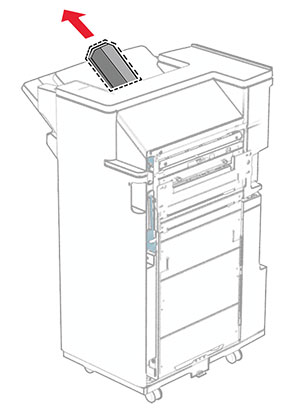
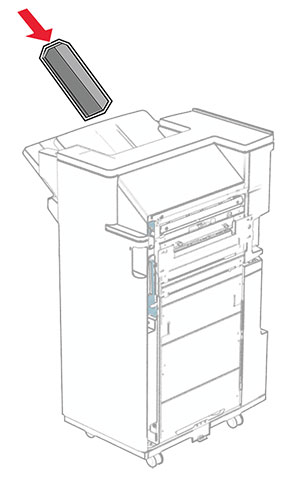
  1. Remove the used top bin extension.

    The top bin extension of the finisher is pulled out.
  2. Unpack the new top bin extension.

  3. Insert the new top bin extension.

    The top bin extension of the finisher is inserted.

Replacing the hole punch box

Note:  Depending on the finisher installed, the appearance of the hole punch box may vary.
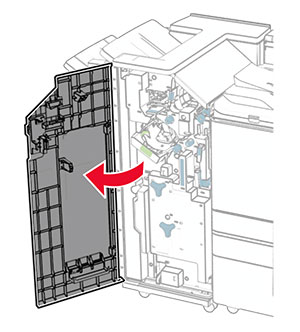
  1. Open the finisher door.

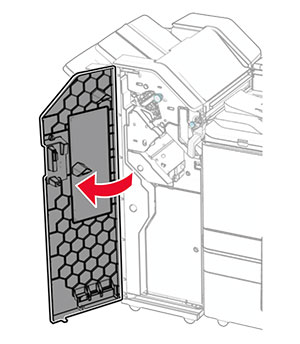
    The finisher door is opened.
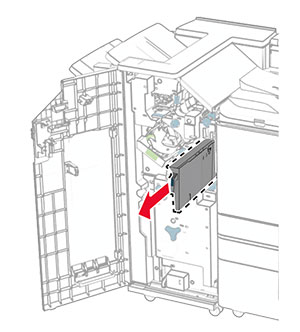
  2. Remove the used hole punch box.

    The hole punch box is pulled out of the finisher.
  3. Unpack the new hole punch box.

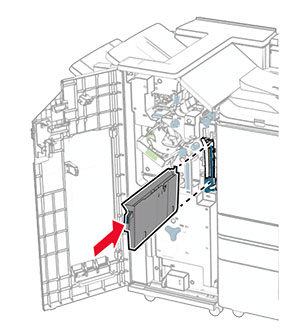
  4. Insert the new hole punch box.

    The hole punch box is inserted into the finisher.
  5. Close the finisher door.

Replacing the standard bin

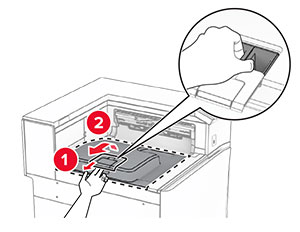
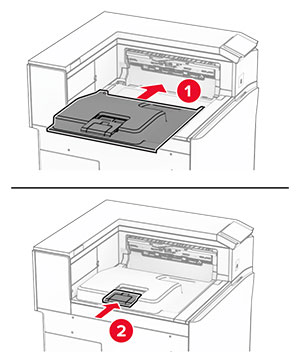
  1. Remove the used standard bin.

    The tray extender is opened, and then the used standard bin is pulled out from the printer.
  2. Unpack the new standard bin.

  3. Attach the new standard bin.

    The new standard bin is installed on the printer.

Replacing the fan cover

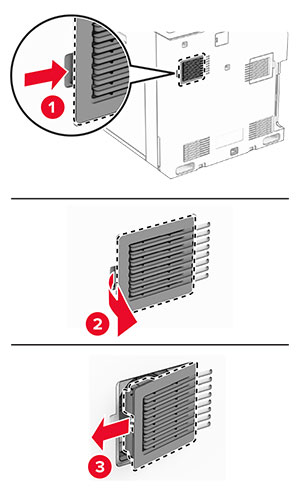
  1. Remove the used fan cover.

    The cover is pushed to the right, and then pulled away from the printer.
  2. Unpack the new cover.

  3. Insert the new cover until it clicks into place.
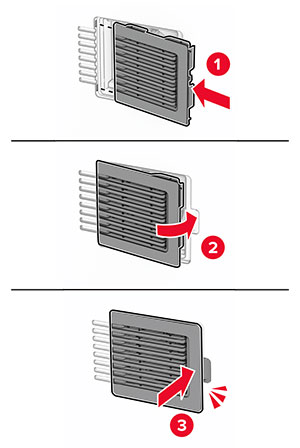
    The fan cover is attached to the printer.

Replacing the right cover

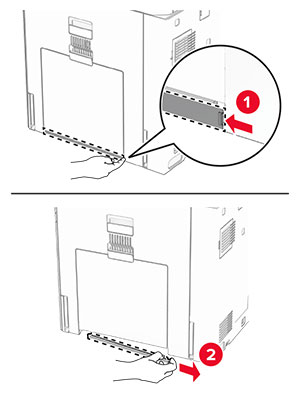
  1. Remove the used right cover.

    The door C is opened halfway, and the right cover is removed.
  2. Unpack the new cover.

  3. Insert the new cover until it clicks into place.
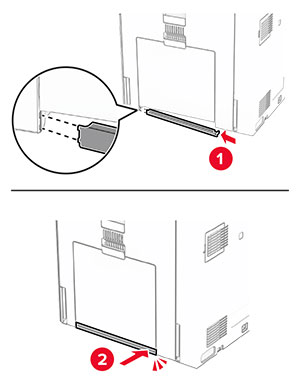
    The new right cover is aligned to the slot, and then the cover is attached.

Replacing the paper transport connector cover

  1. Remove the standard bin.

    The tray extender is opened, and then the used standard bin is pulled out from the printer.
  2. Remove the used paper transport connector cover.
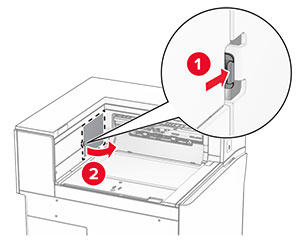
    The used paper transport connector cover is pried, and then  removed.
  3. Unpack the new connector cover.

  4. Attach the new connector cover until it clicks into place.
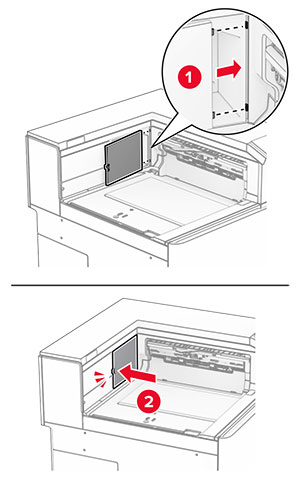
    The new paper transport connector cover is aligned, and then attached to the printer.
  5. Attach the standard bin.

    The standard bin is attached to the printer.

Replacing the staple cartridge unit

Replacing the staple cartridge in the staple finisher

  1. Grab handle F, and then slide the staple finisher to the left.
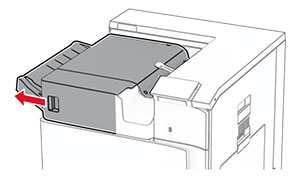
    The staple finisher is slid to the left.
  2. Remove the staple cartridge holder.

    The staple cartridge is pulled out of the finisher.
  3. Remove the empty staple cartridge.

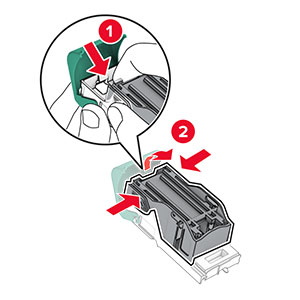
    The tabs on both sides and top of the cartridge are pressed to release it from the holder.
  4. Insert the new staple cartridge until it clicks into place.
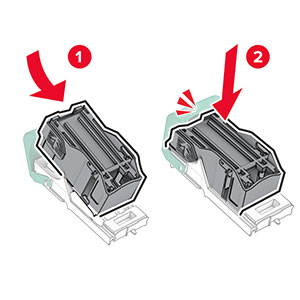
    The cartridge is inserted into the holder.
  5. Insert the staple cartridge holder until it clicks into place.
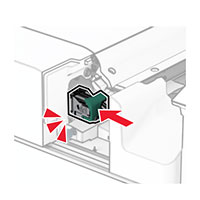
    The cartridge holder is inserted into the finisher.
  6. Slide the staple finisher to the right.

Replacing the staple cartridge in the staple, hole punch finisher

  1. Open door H.

    The finisher door is opened.
  2. Pull out the green handle, and then remove the staple cartridge holder.
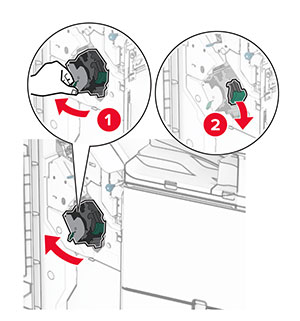
    The staple cartridge is pulled out of the finisher.
  3. Remove the empty staple cartridge.

    The tabs on both sides and top of the cartridge are pressed to release it from the holder.
  4. Unpack the new staple cartridge.

  5. Insert the new staple cartridge until it clicks into place.

    The cartridge is inserted into the holder.
  6. Insert the staple cartridge holder until it clicks into place.
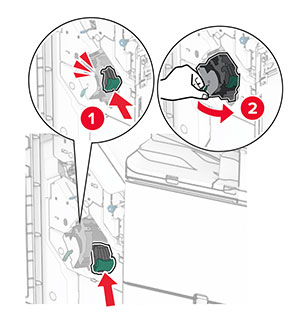
    The cartridge holder is inserted into the finisher.
  7. Close door H.

Replacing the staple cartridge in the booklet finisher

  1. Open door H.

    The finisher door is opened.
  2. Pull out the green handle, and then remove the staple cartridge holder.
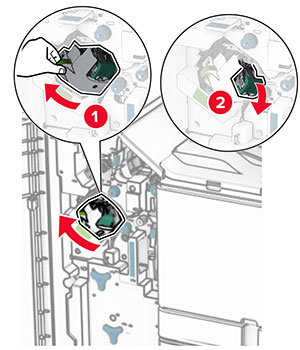
    The staple cartridge is pulled out of the finisher.
  3. Remove the empty staple cartridge.

    The tabs on both sides and top of the cartridge are pressed to release it from the holder.
  4. Unpack the new staple cartridge.

  5. Insert the new staple cartridge until it clicks into place.

    The cartridge is inserted into the holder.
  6. Insert the staple cartridge holder until it clicks into place.
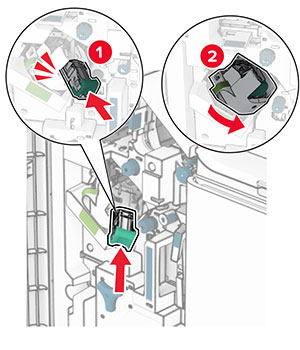
    The cartridge holder is inserted into the finisher.
  7. Close door H.

Replacing the staple cartridge holders in the booklet finisher

  1. Open the finisher door.

    The finisher door is opened.
  2. Pull out the booklet maker, and then remove the used staple cartridge holders.
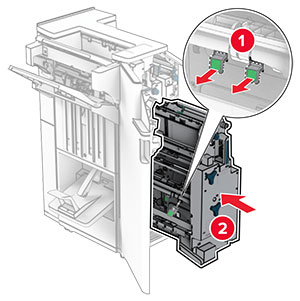
    The booklet maker is pulled out of the finisher, and then the used staple cartridge holders are removed.
  3. Unpack the new staple cartridge holders.

  4. Insert the new staple cartridge holders.
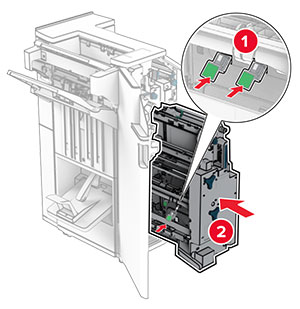
    The staple cartridge holder is inserted, and then pushed into place.
  5. Insert the booklet maker, and then close the finisher door.

Resetting the supply usage counters

  1. From the control panel, navigate to Settings > Device > Maintenance > Configuration Menu > Supply Usage And Counters .

  2. Select the counter that you want to reset.

Warning—Potential Damage:  Supplies and parts without Return Program agreement terms may be reset and remanufactured. However, the manufacturer’s warranty does not cover any damage caused by non-genuine supplies or parts. Resetting counters on the supply or part without proper remanufacturing can cause damage to your printer. After resetting the supply or part counter, your printer may display an error indicating the presence of the reset item.