Cleaning printer parts

Cleaning the printer

Cleaning the printer

shock hazard caution icon   CAUTION—SHOCK HAZARD:  To avoid the risk of electrical shock when cleaning the exterior of the printer, unplug the power cord from the electrical outlet and disconnect all cables from the printer before proceeding.

Notes:

  1. Turn off the printer, and then unplug the power cord from the electrical outlet.

  2. Remove paper from the standard bin and multipurpose feeder.

  3. Using a soft brush or vacuum, remove any dust, lint, and pieces of paper around the printer.

  4. Using a damp, soft, lint-free cloth, wipe the outside of the printer.

    Notes:

    • Do not use household cleaners or detergents, as they may damage the finish of the printer.
    • Make sure that all areas of the printer are dry after cleaning.
  5. Connect the power cord to the electrical outlet, and then turn on the printer.

    standard caution icon   CAUTION—POTENTIAL INJURY:  To avoid the risk of fire or electrical shock, connect the power cord to an appropriately rated and properly grounded electrical outlet that is near the product and easily accessible.
Cleaning the touch screen

Cleaning the touch screen

shock hazard caution icon   CAUTION—SHOCK HAZARD:  To avoid the risk of electric shock when cleaning the exterior of the printer, unplug the power cord from the electrical outlet and disconnect all cables from the printer before proceeding.
  1. Turn off the printer, and then unplug the power cord from the electrical outlet.

  2. Using a damp, soft, lint-free cloth, wipe the touch screen.

    Notes:

    • Do not use household cleaners or detergents as they may damage the touch screen.
    • Make sure that the touch screen is dry after cleaning.
  3. Connect the power cord to the electrical outlet, and then turn on the printer.

    standard caution icon   CAUTION—POTENTIAL INJURY:  To avoid the risk of fire or electrical shock, connect the power cord to an appropriately rated and properly grounded electrical outlet that is near the product and easily accessible.
Cleaning the scanner

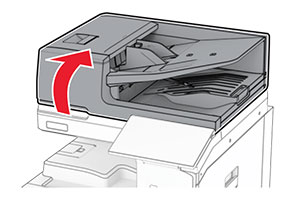
  1. Open the scanner cover.

    The scanner cover is lifted.
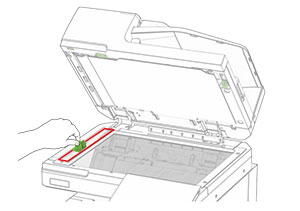
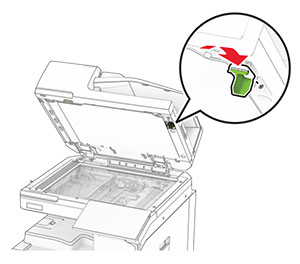
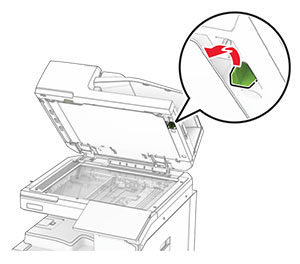
  2. Remove the glass cleaner tool.

    The glass cleaner tool is pulled out of the scanner cover.
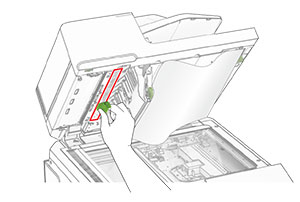
  3. Open door A1.

  4. Using the tool, wipe the ADF glass.

    The ADF glass in door A1 is wiped using the glass cleaner tool.
  5. Close door A1.

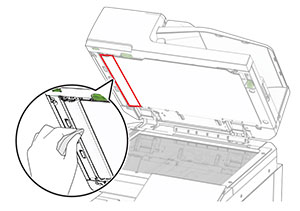
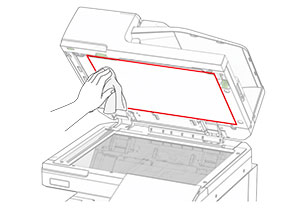
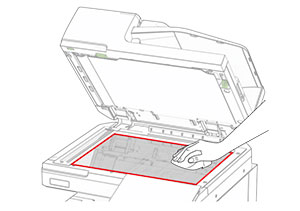
  6. Using a damp, soft, lint-free cloth, wipe the following areas:

    • ADF glass pad

      The ADF glass pad at the underside of the scanner cover is wiped.
    • Scanner glass pad

      The scanner glass pad at the underside of the scanner cover is wiped.
    • Scanner glass

      The scanner glass on the right side is wiped.
  7. Using the tool, wipe the ADF glass.

    The ADF glass is wiped using the glass cleaner tool.
  8. Return the tool into place.

    The glass cleaner tool is inserted into the scanner cover.
  9. Close the scanner cover.

Cleaning the printhead lenses

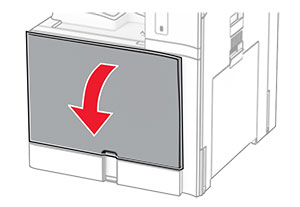
  1. Open the front door.

    The front door is pulled down.
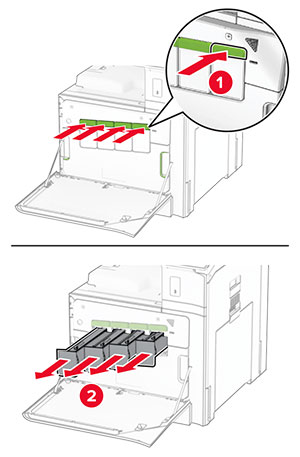
  2. Remove the toner cartridges.

    The green buttons are pushed, and then the cartridges are pulled out from the printer.
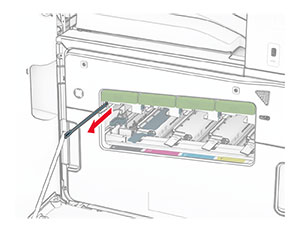
  3. Gently pull out the wiper until it stops.

    The wiper is gently pulled out from the printhead.
    Note:  The wiper does not detach from the printer.
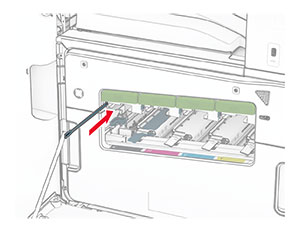
  4. Push the wiper back into the printhead until it stops.

    The wiper is pushed back into the printhead.
  5. Repeat step 3 and step 4 three times for each printhead.

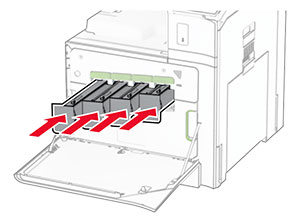
  6. Insert the toner cartridges.

    The toner cartridges are inserted into the printer.
  7. Close the front door.

Emptying the hole punch box

Note:  Depending on the finisher installed, the appearance of the hole punch box may vary.
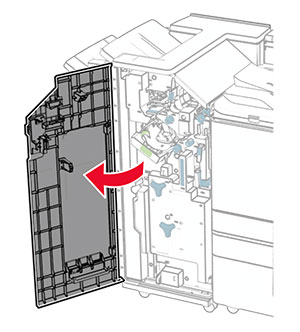
  1. Open the finisher door.

    The finisher door is opened.
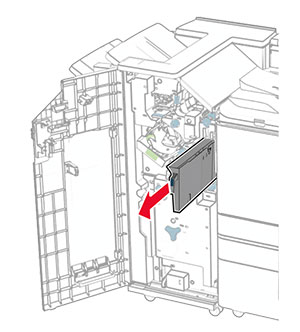
  2. Remove, and then empty the hole punch box.

    The hole punch box is pulled out of the finisher.
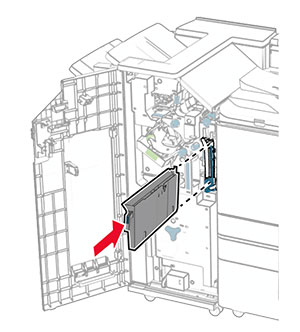
  3. Insert the hole punch box.

    The hole punch box is inserted into the finisher.
  4. Close the finisher door.