Scanning problems

Cannot scan from a computer

Action

Yes

No

Step 1

  1. Turn off the printer, wait for about 10 seconds, and then turn it back on.

  2. Resend the scan job.


Can you send the scan job?

The problem is solved.

Go to step 2.

Step 2

  1. Make sure that the cables between the printer and the print server are secure.

    For more information, see the setup documentation that came with the printer.

  2. Resend the scan job.


Can you send the scan job?

The problem is solved.

Contact customer support .


Partial copies of document or photo

Action

Yes

No

Step 1

  1. Make sure that the document or photo is loaded facedown on the upper left corner of the scanner glass.

  2. Copy the document or photo.


Is the document or photo copied correctly?

The problem is solved.

Go to step 2.

Step 2

  1. Match the paper size setting and the paper loaded in the tray.

  2. Copy the document or photo.


Is the document or photo copied correctly?

The problem is solved.

Contact customer support .


Poor copy quality

Action

Yes

No

Step 1

  1. Using a damp, soft, lint-free cloth, wipe the scanner glass and the ADF glass.

  2. Make sure that the document or photo is loaded facedown on the upper-left corner of the scanner glass.

  3. Copy the document or photo.


Is the copy quality satisfactory?

The problem is solved.

Go to step 2.

Step 2

  1. Check the quality of the original document or photo.

  2. Adjust the scan quality settings.

  3. Copy the document or photo.


Is the copy quality satisfactory?

The problem is solved.

Contact customer support .


Vertical dark streaks on output when scanning from the ADF
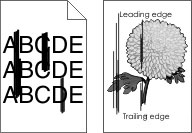
A page with streaked horizontal lines

Action

Yes

No

Step 1

  1. Open the scanner cover.

  2. Using a damp, soft, lint-free cloth, wipe the ADF glass and the white underside of the ADF cover.

  3. Close the scanner cover.


Do vertical streaks still appear on scanned documents?

Go to step 2.

The problem is solved.

Step 2

  1. Open door C.

  2. Using a damp, soft, lint-free cloth, wipe the ADF glass and the white underside of the ADF cover.

  3. Close the door.


Do vertical streaks still appear on scanned documents?

Contact customer support .

The problem is solved.


Scan job was not successful

Action

Yes

No

Step 1

Check the cable connections.

  1. Make sure that the Ethernet or USB cable is securely connected to the computer and the printer.

  2. Resend the scan job.


Is the scan job successful?

The problem is solved.

Go to step 2.

Step 2

Check the file you want to scan.

  1. Make sure that the file name is not already used in the destination folder.

  2. Make sure that the document or photo you want to scan is not open in another application.

  3. Resend the scan job.


Is the scan job successful?

The problem is solved.

Go to step 3.

Step 3

  1. Make sure that the Append time stamp or the Overwrite existing file check box is selected in the destination configuration settings.

  2. Resend the scan job.


Is the scan job successful?

The problem is solved.

Contact customer support .


Scanner does not close

Action

Yes

No

Remove obstructions that keep the scanner cover open.


Did the scanner cover close correctly?

The problem is solved.

Contact customer support .


Scanning takes too long or freezes the computer

Action

Yes

No

Close all applications that are interfering with the scan.


Does scanning take too long or freeze the computer?

Contact customer support .

The problem is solved.


Scanner does not respond

Action

Yes

No

Step 1

  1. Check if the power cord is connected properly to the printer and the electrical outlet.

    standard caution icon  CAUTION—POTENTIAL INJURY:  To avoid the risk of fire or electrical shock, connect the power cord to an appropriately rated and properly grounded electrical outlet that is near the product and easily accessible.

  2. Copy or scan the document.


Is the scanner responding?

The problem is solved.

Go to step 2.

Step 2

  1. Check if the printer is turned on.

  2. Resolve any error messages that appear on the display.

  3. Copy or scan the document.


Is the scanner responding?

The problem is solved.

Go to step 3.

Step 3

  1. Turn off the printer, wait for about 10 seconds, and then turn the printer on.

  2. Copy or scan the document.


Is the scanner responding?

The problem is solved.

Contact customer support .


Adjusting scanner registration

  1. From the control panel, navigate to:

    the home button > Settings > the select button > Device > the select button > Maintenance > the select button > Config Menu > the select button > Scanner Configuration > the select button > Scanner Manual Registration > the select button

  2. Select Print Quick Test , and then press the select button .

  3. Place the Print Quick Test page on the scanner glass, and then select Flatbed Registration .

  4. Select Copy Quick Test , and then press the select button .

  5. Compare the Copy Quick Test page with the original document.

    Note:  If the margins of the test page are different from the original document, then adjust Left Margin and Top Margin.
  6. Repeat step 4 and step 5 until the margins of the Copy Quick Test page closely match the original document.

Adjusting ADF registration

  1. From the control panel, navigate to:

    the home button > Settings > the select button > Device > the select button > Maintenance > the select button > Config Menu > the select button > Scanner Configuration > the select button > Scanner Manual Registration > the select button

  2. Select Print Quick Test , and then press the select button .

  3. Place the Print Quick Test page on the ADF tray.

  4. Select Front ADF Registration or Rear ADF Registration .

    Notes:

    • To align Front ADF Registration, place the test page faceup, short edge first into the ADF.
    • To align Rear ADF Registration, place the test page facedown, short edge first into the ADF.
  5. Select Copy Quick Test , and then press the select button .

  6. Compare the Copy Quick Test page with the original document.

    Note:  If the margins of the test page are different from the original document, then adjust Horizontal Adjust and Top Margin.
  7. Repeat step 5 and step 6 until the margins of the Copy Quick Test page closely match the original document.