Loading paper and specialty media

Setting the paper size and type

  1. From the home screen, touch Settings > Paper > Tray Configuration > Paper Size/Type > select a paper source.

  2. Set the paper size and type.

Configuring Universal paper settings

  1. From the home screen, touch Settings > Paper > Media Configuration > Universal Setup .

  2. Configure the settings.

Loading trays

tipping hazard caution icon   CAUTION—TIPPING HAZARD:  To reduce the risk of equipment instability, load each tray separately. Keep all other trays closed until needed.
  1. Remove the tray.

    Note:  To avoid paper jams, do not remove the tray while the printer is busy.
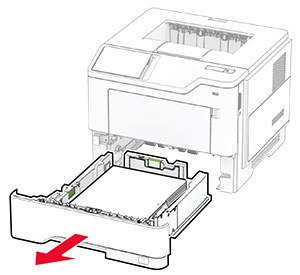
    The tray is pulled out of the printer.
  2. Adjust the guides to match the size of the paper that you are loading.
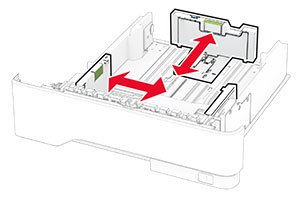
    The paper guides are adjusted.
  3. Flex, fan, and align the paper edges before loading.
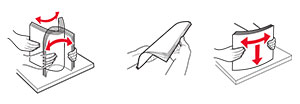
    Paper stack is flexed, fanned, and aligned.
  4. Load the paper stack with the printable side facedown, and then make sure that the guides fit snugly against the paper.

    Notes:

    • Load letterhead facedown with the header toward the front of the tray for one-sided printing.
    • Load letterhead faceup with the header toward the back of the tray for two-sided printing.
    • Do not slide paper into the tray.
    • To avoid paper jams, make sure that the stack height is below the maximum paper fill indicator.
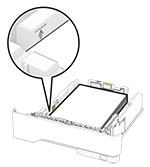
    Paper stack is below the maximum fill indicator.
  5. Insert the tray.

If necessary, set the paper size and paper type from the control panel to match the paper loaded.
Loading the multipurpose feeder

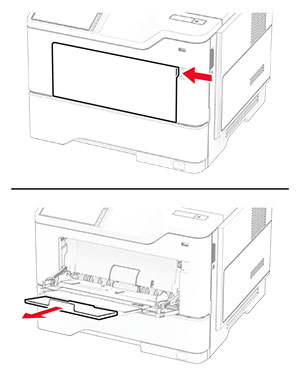
  1. Open the multipurpose feeder.

    The multipurpose feeder is pulled down, and then the extender is pulled up.
  2. Flex, fan, and align the paper edges before loading.

    Paper stack is flexed, fanned, and aligned.
  3. Load paper with the printable side faceup.

    Notes:

    • Load letterhead faceup with the header toward the rear of the printer for one-sided printing.
    • Load letterhead facedown with the header toward the front of the printer for two-sided printing.
    • Load envelopes with the flap facedown on the left side.
    Warning—Potential Damage:  Do not use envelopes with stamps, clasps, snaps, windows, coated linings, or self-stick adhesives.
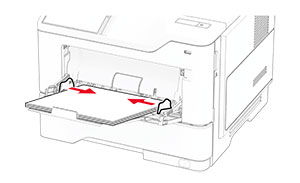
  4. Adjust the guide to match the size of the paper that you are loading.

    The paper guides are pushed toward the center of the multipurpose feeder.
  5. From the control panel, set the paper size and paper type to match the paper loaded.

Linking trays

  1. From the home screen, touch Settings > Paper > Tray Configuration > select a paper source.

  2. Set the same paper size and paper type for the trays that you are linking.

  3. From the home screen, touch Settings > Device > Maintenance > Configuration Menu > Tray Configuration > Tray Linking .

  4. Touch Automatic .

To unlink trays, make sure that no trays have the same paper size and paper type settings.

Warning—Potential Damage:  The temperature of the fuser varies according to the specified paper type. To avoid printing issues, match the paper type setting in the printer with the paper loaded in the tray.