
| | CAUTION—POTENTIAL INJURY: To reduce the risk of equipment instability, load each tray separately. Keep all other trays closed until needed. |
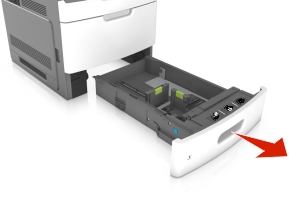
Pull out the tray.
Notes:
Squeeze and slide the width guide to the correct position for the size of the paper being loaded until it clicks into place.
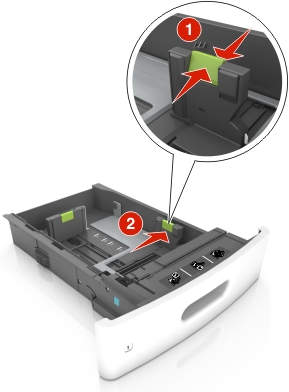
| Note: Use the paper size indicators at the bottom of the tray to help position the guides. |

Unlock the length guide, and then squeeze and slide the guide to the correct position for the size of the paper being loaded.
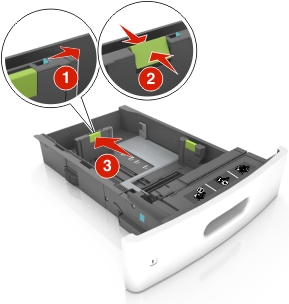
Notes:
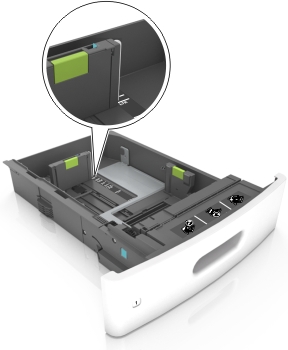
Flex the sheets back and forth to loosen them, and then fan them. Do not fold or crease the paper. Straighten the edges on a level surface.

Load the paper stack with the printable side facedown.
| Note: Make sure the paper is loaded properly. |
There are different ways of loading letterhead depending on whether an optional staple finisher is installed or not.
|
Without an optional staple finisher |
With an optional staple finisher |
|---|---|
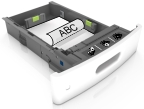 One-sided printing |
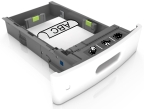 One-sided printing |
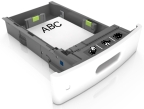 Two-sided printing |
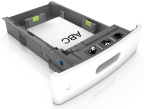 Two-sided printing |
If you are loading prepunched paper for use with the staple finisher, then make sure the holes on the long edge of the paper are on the right side of the tray.
|
One-sided printing |
Two-sided printing |
|---|---|
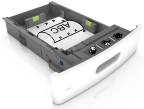 |
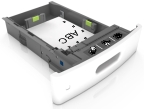 |
| Note: If the holes on the long edge of the paper are on the left side of the tray, then a jam may occur. |
Do not slide the paper into the tray. Load paper as shown in the illustration.
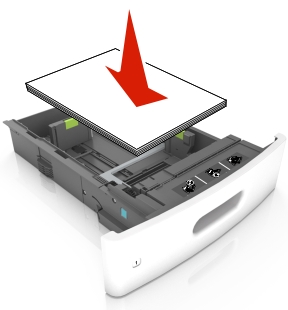
Make sure the paper is below the solid line, which is the maximum paper fill indicator.
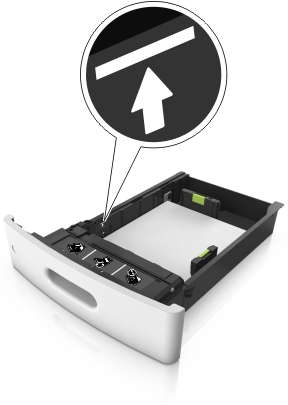
| Warning—Potential Damage: Overfilling the tray can cause paper jams. |
When using card stock, labels, or other types of specialty media, make sure the paper is below the dashed line, which is the alternate paper fill indicator.
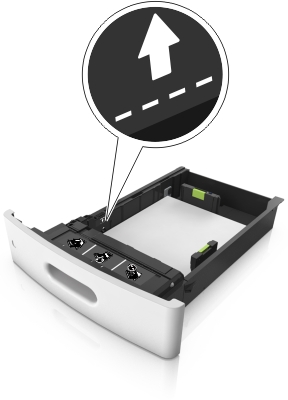
For custom- or Universal-size paper, adjust the paper guides to lightly touch the sides of the stack, and then lock the length guide.
Insert the tray.
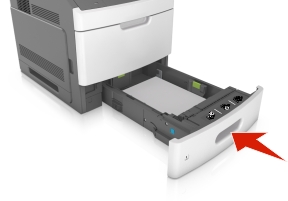
From the printer control panel, set the paper size and paper type in the Paper menu to match the paper loaded in the tray.
| Note: Set the correct paper size and type to avoid paper jams and print quality problems. |