Replacing supplies

Replacing the toner cartridge

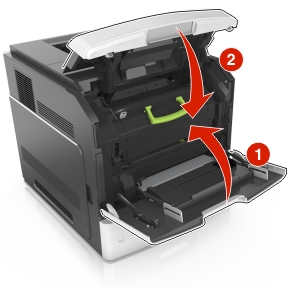
  1. Lift the front cover, and then pull down the multipurpose feeder door.
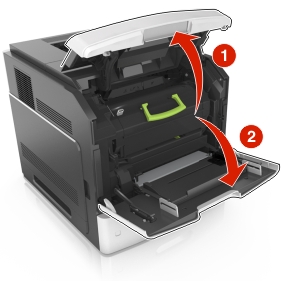
  2. Pull the cartridge out of the printer using the handle.
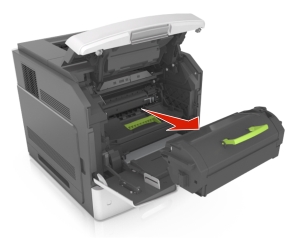
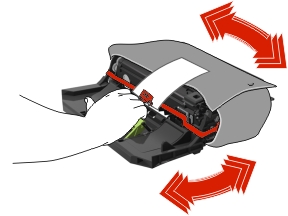
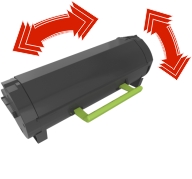
  3. Unpack the new toner cartridge, then remove the packing material, and then shake the cartridge to redistribute the toner.
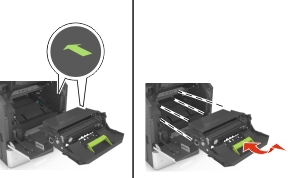
  4. Insert the toner cartridge into the printer by aligning the side rails of the cartridge with the arrows on the side rails inside the printer.

    Note: Make sure the cartridge is fully pushed in.
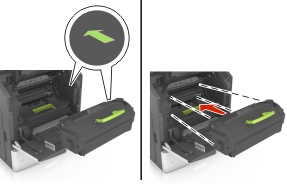
    Insert the toner cartridge into the printer by aligning the side rails of the cartridge with the arrows on the side rails inside the printer.
    Warning—Potential Damage: When replacing a toner cartridge, do not leave the imaging unit exposed to direct light for an extended period of time. Extended exposure to light may cause print quality problems.
  5. Close the multipurpose feeder door and the front cover.
Replacing the imaging unit

  1. Lift the front cover, and then pull down the multipurpose feeder door.

  2. Pull out the toner cartridge from the printer using the handle.

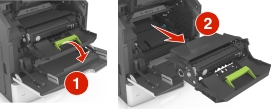
  3. Lift the green handle, and then pull out the imaging unit from the printer.

  4. Unpack the new imaging unit, and then shake it.

  5. Remove all packing material from the imaging unit.

    Warning—Potential Damage: Do not expose the imaging unit to direct light for more than 10 minutes. Extended exposure to light may cause print quality problems.
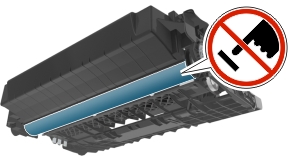
    Warning—Potential Damage: Do not touch the photoconductor drum. Doing so may affect the print quality of future print jobs.
  6. Insert the imaging unit into the printer by aligning the arrows on the side rails of the imaging unit with the arrows on the side rails inside the printer.

  7. Insert the toner cartridge into the printer by aligning the side rails of the cartridge with the arrows on the side rails inside the printer.

    Insert the toner cartridge into the printer by aligning the side rails of the cartridge with the arrows on the side rails inside the printer.
  8. Close the multipurpose feeder door and the front cover.
Replacing a staple cartridge

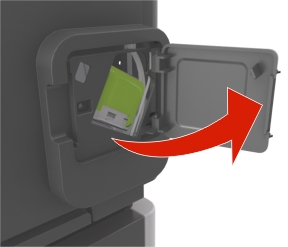
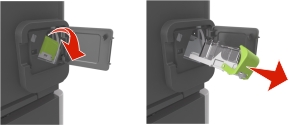
  1. Open the stapler door.

  2. Pull down the latch of the staple cartridge holder, and then pull the holder out of the finisher.

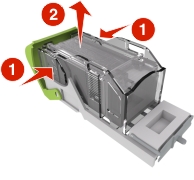
  3. Squeeze both sides of the empty staple case with your fingers, and then remove the staple case from the cartridge.

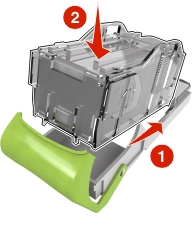
  4. Insert the front side of the new staple case into the staple cartridge, and then push the rear side into the cartridge.

  5. Push the staple cartridge into the finisher until it clicks into place.

  6. Close the stapler door.

Replacing the fuser wiper cover assembly

  1. Turn off the printer.

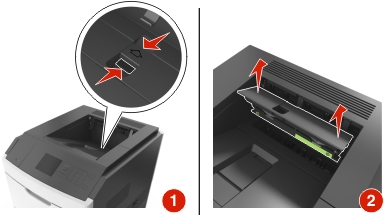
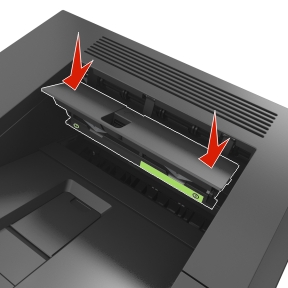
  2. Squeeze the fuser wiper cover tab, and then lift to remove the cover assembly.

    hot surface caution icon CAUTION—HOT SURFACE: The inside of the printer might be hot. To reduce the risk of injury from a hot component, allow the surface to cool before touching.
  3. Install the new cover assembly into the printer.

  4. Turn on the printer.

Replacing the fuser wiper

  1. Turn off the printer.

  2. Squeeze the fuser wiper cover tab, and then lift to remove the cover assembly.

    hot surface caution icon CAUTION—HOT SURFACE: The inside of the printer might be hot. To reduce the risk of injury from a hot component, allow the surface to cool before touching.
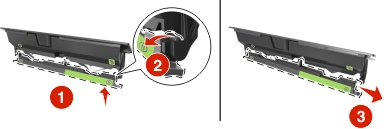
  3. Press the green portion of the fuser wiper against the fuser wiper cover, and then unhook the right side of the wiper from the cover frame to remove the fuser wiper.

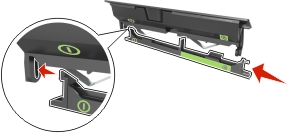
  4. Insert the left side of the new fuser wiper tab through the slot on the left side of the cover frame.

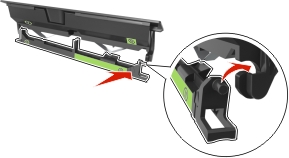
  5. Hook the right side of the fuser wiper on the right side of the cover frame.

  6. Install the cover assembly into the printer.

  7. Turn on the printer.