更换部件和耗材

更换碳粉盒

  1. 打开前部盖门。

    警告—可能的损坏:  为防止静电放电造成的损坏,请在进入或接触打印机的内部区域之前触摸打印机的任何外露金属框架。
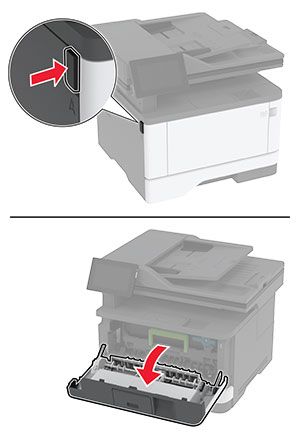
    The button on the left side of the printer is pushed, and then the door is opened.
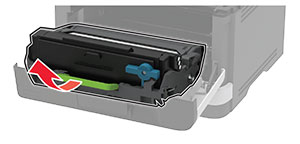
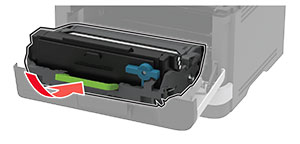
  2. 移除成像单元。

    The imaging unit is pulled out of the printer.
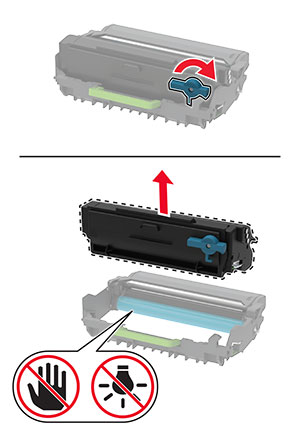
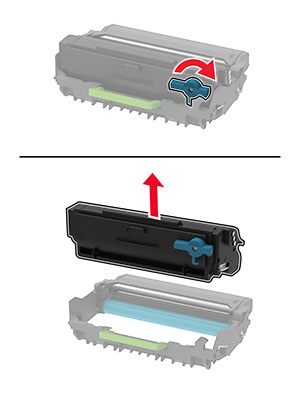
  3. 旋转蓝色插销,然后从成像单元中移除旧碳粉盒。

    警告—可能的损坏:  不要让成像单元暴露在直射光线下超过 10 分钟。长时间暴露在光线下可能导致打印质量问题。
    警告—可能的损坏:  请勿触摸光导鼓。否则会影响以后的打印作业质量。
    The blue latch on the cartridge is twisted clockwise, and then the cartridge is removed from the imaging unit.
  4. 拆开新碳粉盒的包装。

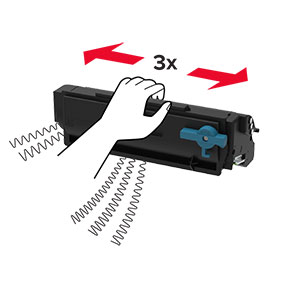
  5. 摇晃碳粉盒以使碳粉重新分布。

    The cartridge is shaken left to right three times.
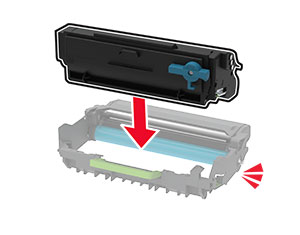
  6. 将新碳粉盒插入成像单元中,直至其 卡入 到位。

    The cartridge is inserted into the imaging unit.
  7. 插入成像单元。

    The imaging unit is inserted into the printer.
  8. 关闭盖门。

更换成像单元

  1. 打开前部盖门。

    警告—可能的损坏:  为防止静电放电造成的损坏,请在进入或接触打印机的内部区域之前触摸打印机的任何外露金属框架。
    The button on the left side of the printer is pushed, and then the door is opened.
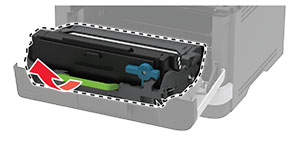
  2. 移除旧的成像单元。

    The imaging unit is pulled out of the printer.
  3. 旋转蓝色插销,然后从旧成像单元中移除碳粉盒。

    The blue latch on the cartridge is twisted clockwise, and then the cartridge is removed from the imaging unit.
  4. 拆开新成像单元的包装,然后插入碳粉盒,直至其 卡入 到位。

    警告—可能的损坏:  不要让成像单元暴露在直射光线下超过 10 分钟。长时间暴露在光线下可能导致打印质量问题。
    警告—可能的损坏:  请勿触摸光导鼓。否则会影响以后的打印作业质量。
    The cartridge is inserted into the imaging unit.
  5. 插入新的成像单元。

    The imaging unit is inserted into the printer.
  6. 关闭盖门。

更换进纸匣

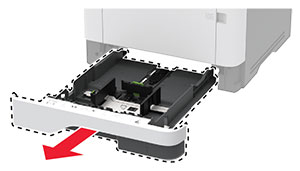
  1. 移除旧进纸匣。

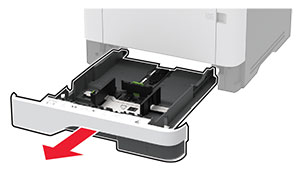
    The tray is pulled out of the printer.
  2. 拆开新进纸匣的包装。

  3. 插入新进纸匣。

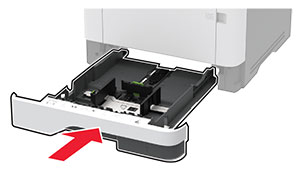
    The tray is inserted into the printer.

更换拾纸辊配件

  1. 关闭打印机电源。

  2. 从电源插座上拔掉电源线,然后从打印机上拔掉电源线。

  3. 打开前部盖门。

    The button on the left side of the printer is pushed, and then the front door is opened.
  4. 移除成像单元。

    The imaging unit is pulled out of the printer.
  5. 关闭前部盖门。

  6. 移除进纸匣。

    The tray is pulled out of the printer.
  7. 将打印机侧放。

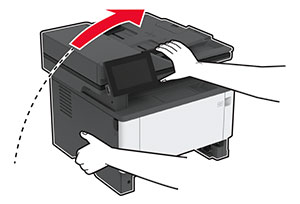
    The printer is flipped to its side.
  8. 移除旧拾纸辊配件。

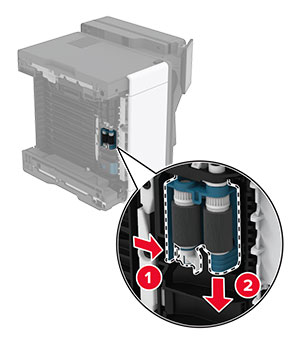
    The tray pick roller assembly is removed from the printer.
  9. 拆开新拾纸辊配件的包装。

    注意:  为避免污染,请确保双手干净。
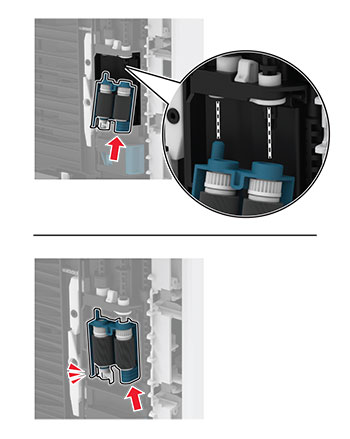
  10. 插入新拾纸辊配件。

    The pick roller assembly is aligned, and then inserted into the printer.
  11. 将打印机放回其原位,然后插入进纸匣。

  12. 打开前部盖门。

  13. 插入成像单元。

  14. 关闭前部盖门。

  15. 将电源线连接到打印机上,然后连接到电源插座上。

    标准的小心图标   小心—可能的伤害:  为避免火灾或电击危险,请将电源线连接到具有适当额定电压并正确接地的电源插座上,该插座应该靠近产品并且便于使用。
  16. 打开打印机电源。

更换进纸匣分离辊

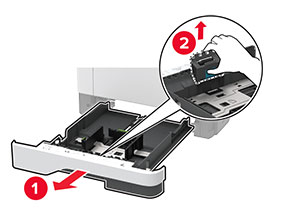
  1. 移除进纸匣,然后移除旧分离辊。

    The tray is pulled out of the printer, and then the separator roller is removed from the tray.
  2. 拆开新分离辊的包装。

    注意:  为避免污染,请确保双手干净。
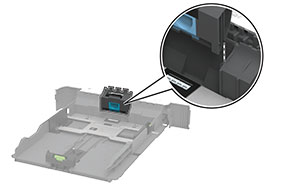
  3. 插入新的分离辊。

    The tray separator roller is aligned, and then inserted into the tray.
  4. 插入进纸匣。

    The tray is inserted into the printer.

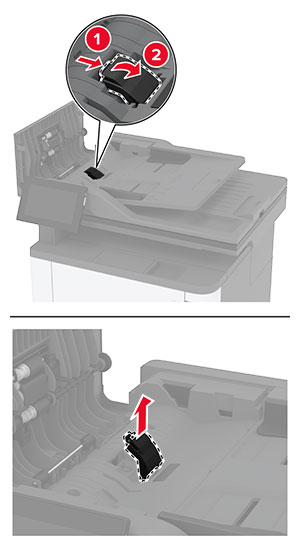
更换 ADF 分离垫

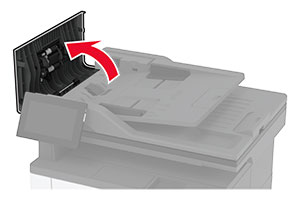
  1. 打开盖门 C。

    Door C is pulled up.
  2. 移除旧 ADF 分离垫。

    The ADF separator pad is unlocked, and then pulled out of the ADF.
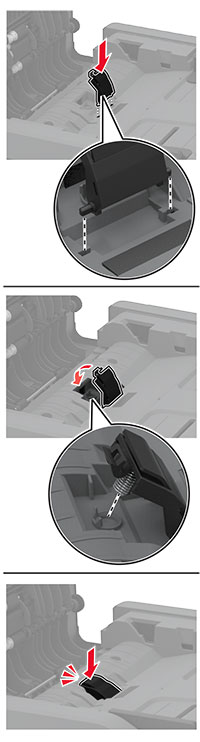
  3. 拆开新 ADF 分离垫的包装。

  4. 插入新分隔垫,直至其 卡入 到位。

    The ADF separator pad is aligned, and then inserted into the ADF.
  5. 关闭盖门。

重置耗材使用情况计数器

  1. 从主屏幕,触摸 设置 > 设备 > 维护 > 配置菜单 > 耗材使用情况和计数器

  2. 选择您要重置的计数器。

警告—可能的损坏:  不使用“回收计划”协议条款的耗材和部件可以重置和再制造。但是,制造商的保修不包括由于非正品耗材或部件造成的任何损坏。重置耗材或部件的计数器而没有适当的再制造会对打印机造成损坏。重置耗材或部件的计数器之后,打印机可能显示错误,指出存在重置项目。