更换部件和耗材

更换碳粉盒

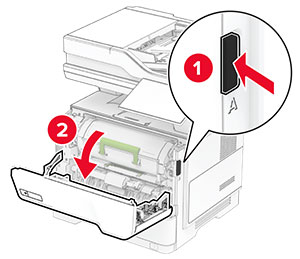
  1. 打开盖门 A。

    The button on the right side of the printer is pushed, and then the door is opened.
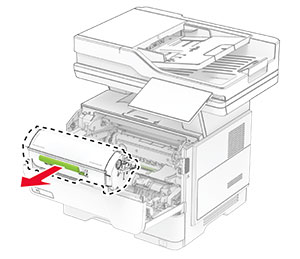
  2. 移除旧的碳粉盒。

    The toner cartridge is pulled out of the printer.
  3. 拆开新碳粉盒的包装。

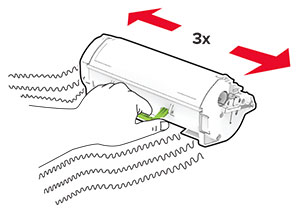
  4. 摇晃碳粉盒以使碳粉重新分布。

    The toner cartridge is shaken left to right three times.
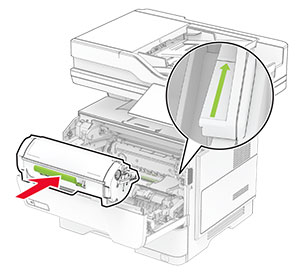
  5. 插入新的碳粉盒。

    The toner cartridge is inserted into the printer.
  6. 关闭盖门 A。

更换成像单元

  1. 打开盖门 A。

    The button on the right side of the printer is pushed, and then the door is opened.
  2. 移除碳粉盒。

    The toner cartridge is pulled out of the printer.
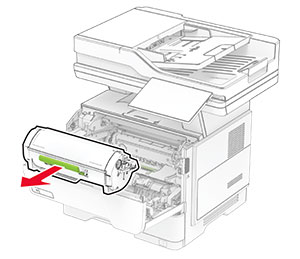
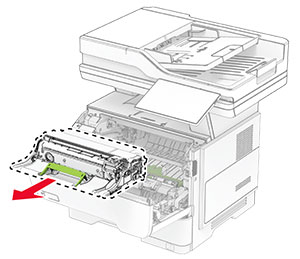
  3. 移除旧的成像单元。

    The imaging unit is pulled out of the printer.
  4. 拆开新的成像单元的包装。

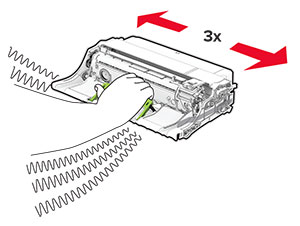
  5. 摇晃成像单元以使碳粉重新分布。

    The imaging unit is shaken left to right three times.
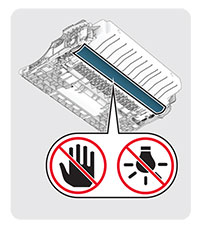
    警告—可能的损坏: 不要让成像单元暴露在直射光线下超过 10 分钟。长时间暴露在光线下可能导致打印质量问题。
    警告—可能的损坏: 请勿触摸光导鼓。否则会影响以后的打印作业质量。
    The bottom side of the imaging unit containing the photoconductor drum.
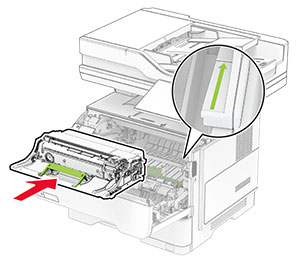
  6. 插入新的成像单元。

    The imaging unit is inserted into the printer.
  7. 插入碳粉盒。

    The toner cartridge is inserted into the printer.
  8. 关闭盖门 A。

更换订书钉填充器

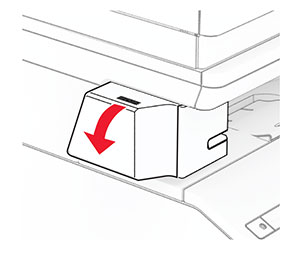
  1. 打开便利装订器通道盖门。

    The convenience stapler door is opened.
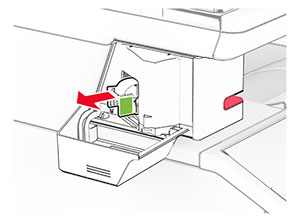
  2. 移除订书钉盒。

    The staple cartridge is pulled out.
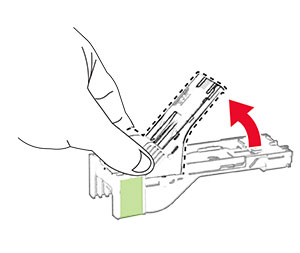
  3. 移除空订书钉填充器。

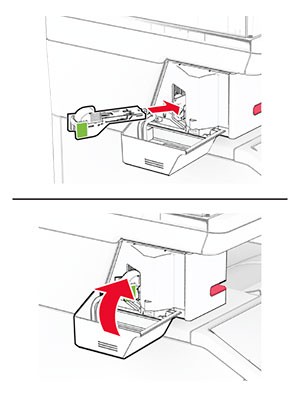
    The empty staple refill is pulled out of the staple cartridge.
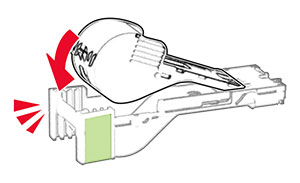
  4. 插入新的订书钉填充器直至其卡入到位。

    The new staple refill is inserted into the staple cartridge.
  5. 插入订书钉盒,然后关闭便利装订器通道盖门。

    The staple cartridge is inserted into the convenience stapler, and the convenience stapler access door is closed.
  6. 注意: 检查 LED 指示灯状态。当蓝灯亮起时,即表明该便利装订器已准备就绪。

更换便利装订器的电源

  1. 关闭打印机电源。

  2. 从电源插座上拔掉电源线,然后从打印机上拔掉电源线。

  3. 从电源插座上拔下电源。

  4. 移除柱形盖板和电源线。

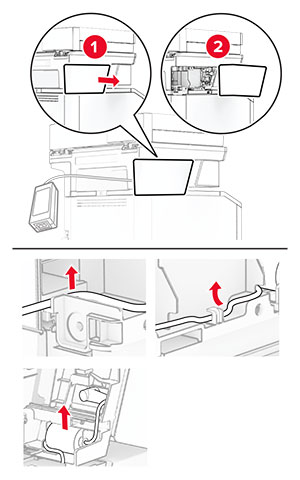
    The column cover and power supply cable are removed.
  5. 移除便利装订器。

    The convenience stapler is removed from the printer.
  6. 移除旧电源。

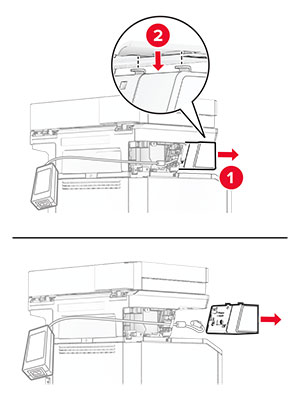
    The used power supply is removed from the printer.
  7. 打开新电源的包装。

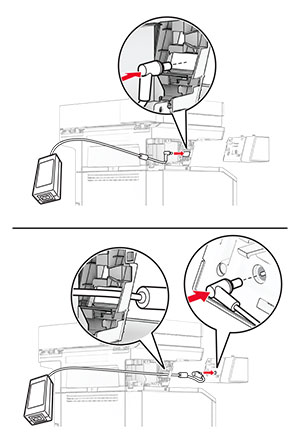
  8. 插入新电源穿过打印机,然后将其连接到便利装订器。

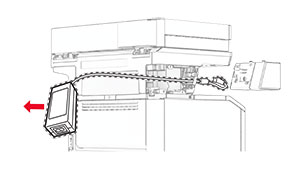
    The power supply is connected to the convenience stapler and positioned correctly from the printer.
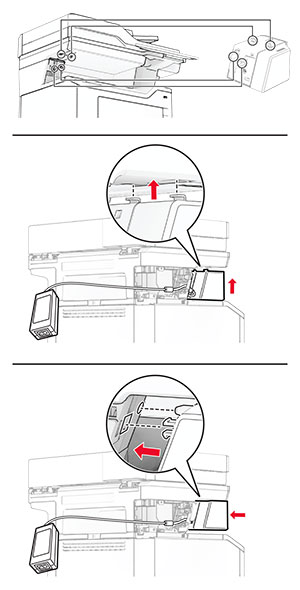
  9. 安装便利装订器。

    The convenience stapler is installed into its location on the printer column.
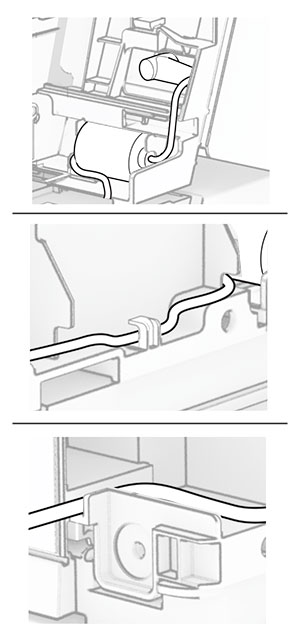
  10. 正确放置电源。

    The power supply is inserted into the printer column to keep it in place.
  11. 安装柱形盖板。

    The column cover is attached and the power supply is positioned properly.
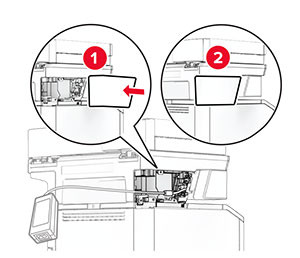
    注意: 正确保护电源。
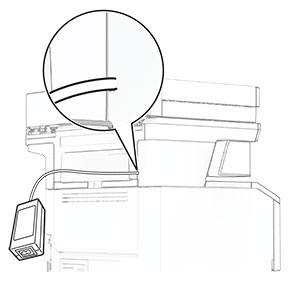
    The power supply is covered.
  12. 将装订器电源线的一端连接到电源,然后将另一端连接到电源插座。

  13. 将打印机电源线的一端连接到打印机,然后将另一端连接到电源插座。

    标准的小心图标 小心—可能的伤害: 为避免火灾或电击危险,请将电源线连接到具有适当额定电压并正确接地的电源插座上,该插座应该靠近产品并且便于使用。
  14. 打开打印机电源。

更换 MarkNet N8450 无线打印服务器

电击危险小心图标 小心—电击危险: 为避免电击危险,如果您在设置完打印机后访问控制器主板或者安装可选的硬件或内存设备,请在继续操作之前先关闭打印机电源并从电源插座中拔掉电源线。如果您还有其他设备连接在打印机上,也应关闭它们的电源并拔掉所有连接到打印机上的电缆。
注意: 此任务需要平头螺丝起子。
  1. 关闭打印机电源。

  2. 从电源插座上拔掉电源线,然后从打印机上拔掉电源线。

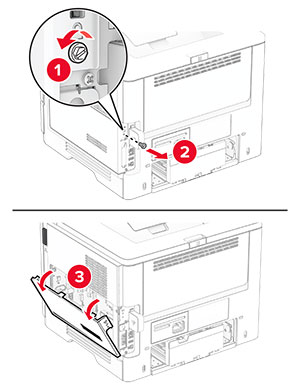
  3. 打开控制器板通道盖板。

    警告—可能的损坏: 控制器板电子组件容易被静电损坏。在接触任何控制器板组件或连接器之前请先触摸一下打印机上的金属表面。
    The cover on the right side of the printer is opened.
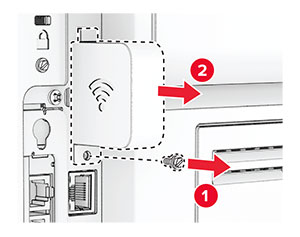
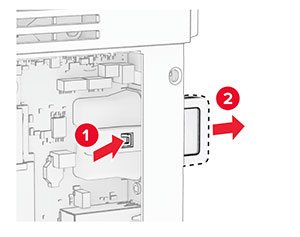
  4. 移除无线打印服务器盖板。

    The cover of the wireless print server is removed.
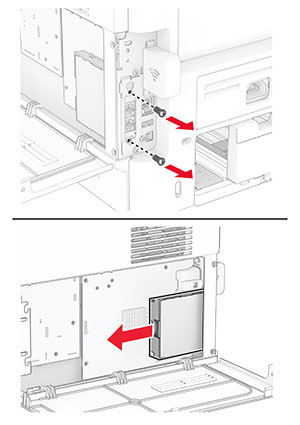
  5. 移除传真卡。

    The fax card is removed from the controller board.
  6. 移除旧的无线打印服务器。

    The wireless print server is pulled out of its slot.
  7. 拆开新的无线打印服务器的包装。

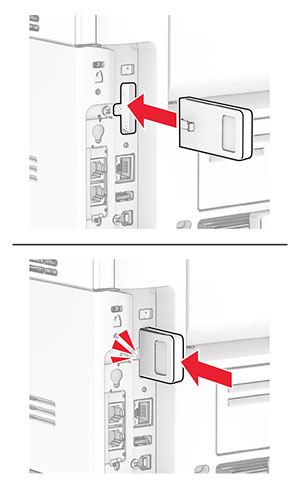
  8. 插入新的无线打印服务器直至其卡入到位。

    The wireless print server is inserted into its slot.
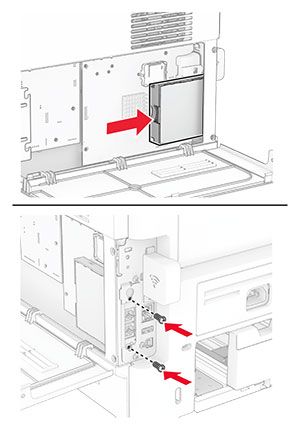
  9. 插入传真卡,然后安装螺钉。

    The fax card is inserted in the controller board.
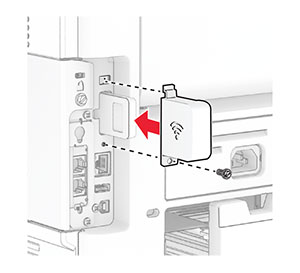
  10. 安装无线打印服务器盖板,然后安装螺钉。

    The wireless print server cover is attached.
  11. 关闭控制器板通道盖板,然后安装螺钉。

    The cover at the right side of the printer is closed.
  12. 将电源线连接到打印机上,然后连接到电源插座上。

    标准的小心图标 小心—可能的伤害: 为避免火灾或电击危险,请将电源线连接到具有适当额定电压并正确接地的电源插座上,该插座应该靠近产品并且便于使用。
  13. 打开打印机电源。

更换搓纸轮

  1. 关闭打印机电源。

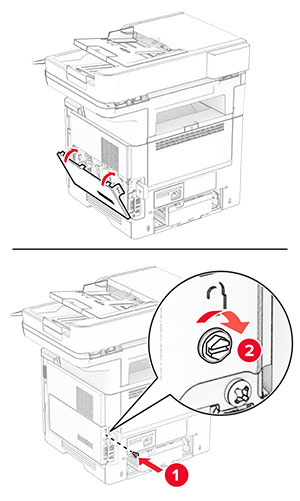
  2. 从电源插座上拔掉电源线,然后从打印机上拔掉电源线。

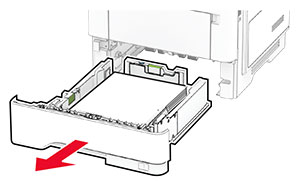
  3. 移除进纸匣。

    The tray is pulled out of the printer.
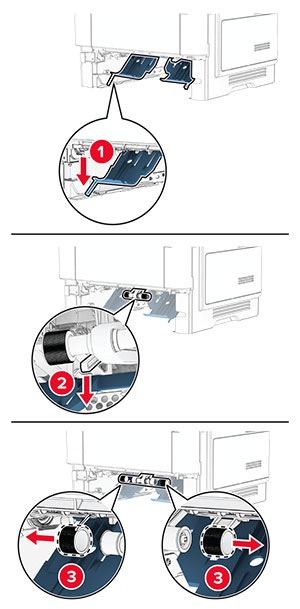
  4. 移除旧的搓纸轮。

    The used pick tires are removed from the pick roller assembly.
  5. 拆开新搓纸轮的包装。

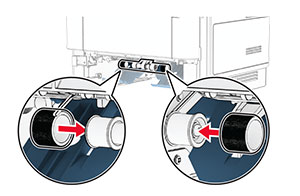
  6. 插入新搓纸轮。

    The new pick tires are inserted.
  7. 插入进纸匣。

  8. 将电源线连接到打印机上,然后连接到电源插座上。

    标准的小心图标 小心—可能的伤害: 为避免火灾或电击危险,请将电源线连接到具有适当额定电压并正确接地的电源插座上,该插座应该靠近产品并且便于使用。
  9. 打开打印机电源。

更换扫描仪玻璃垫

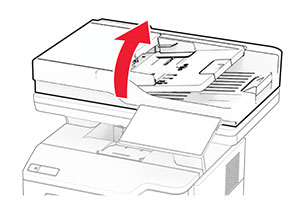
  1. 打开扫描仪盖板。

    The scanner cover is lifted.
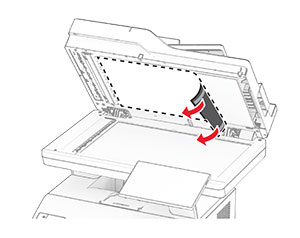
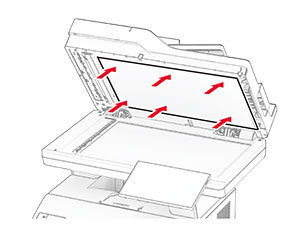
  2. 移除旧的扫描仪玻璃垫。

    The used scanner glass pad is peeled off from the scanner cover.
  3. 拆开新的扫描仪玻璃垫的包装。

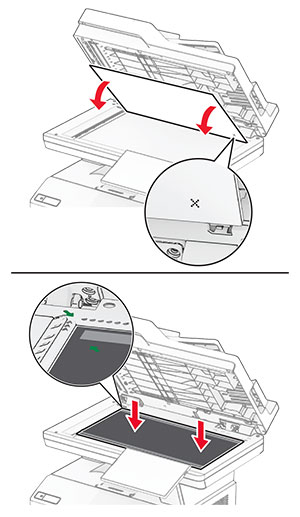
  4. 将新的扫描仪玻璃垫与扫描仪玻璃对齐。

    The new scanner glass pad is placed on the scanner glass, with the adhesives facing toward the scanner cover.
  5. 关闭扫描仪盖板以安装新的扫描仪玻璃垫。

    The scanner cover is closed, with the adhesives facing toward it.
  6. 打开扫描仪盖板。

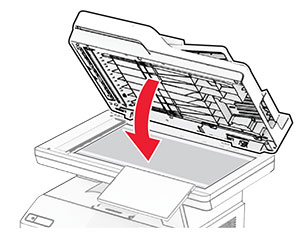
  7. 对扫描仪玻璃垫施加压力以将其固定。

    The scanner glass pad is pressed to the back of the scanner cover.
  8. 关闭扫描仪盖板。

更换 ADF 辊

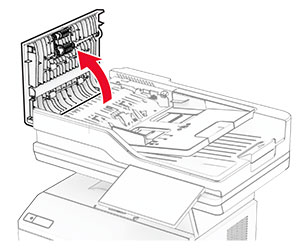
  1. 打开盖门 C。

    向上拉盖门 C。
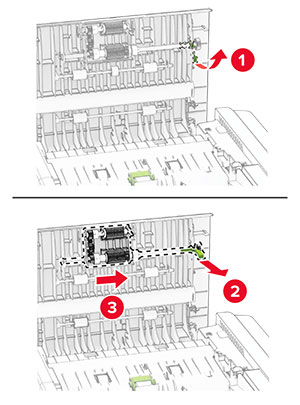
  2. 移除旧的 ADF 拾纸辊。

    释放绿色插销,然后向上拉以移除 ADF 拾纸辊。
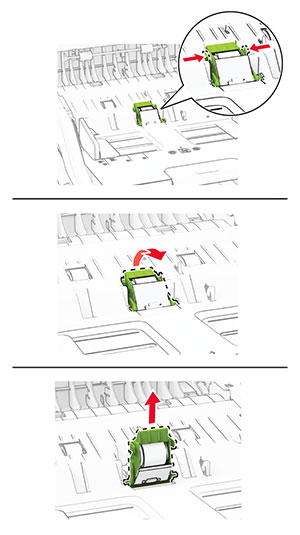
  3. 移除旧的 ADF 分离辊。

    压紧绿色插销的两边以解锁并移除 ADF 分离辊。
  4. 拆开新的 ADF 拾纸辊和 ADF 分离辊的包装。

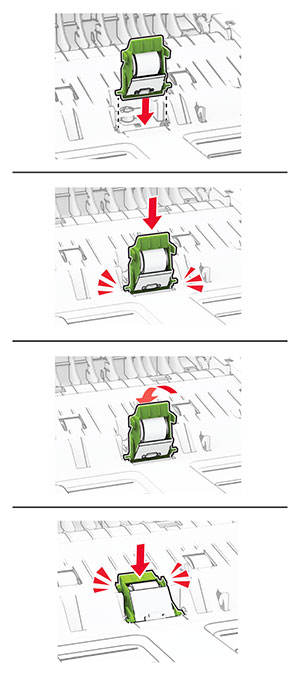
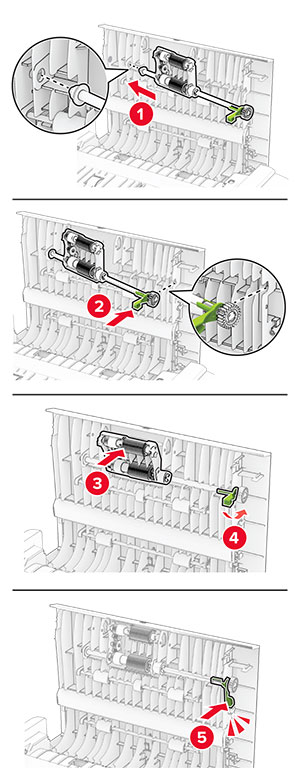
  5. 插入新的 ADF 分离辊,直到听到咔嗒一声,卡入到位。

    插入新的 ADF 分离辊。
  6. 插入新的 ADF 拾纸辊,直到听到咔嗒一声,卡入到位。

    插入新的 ADF 拾纸辊,然后向下拉。
  7. 关闭盖门 C。

重置耗材使用情况计数器

  1. 从主屏幕,触摸设置 > 设备 > 维护 > 配置菜单 > 耗材使用情况和计数器

  2. 选择您要重置的计数器。

警告—可能的损坏: 不使用“回收计划”协议条款的耗材和部件可以重置和再制造。但是,制造商的保修不包括由于非正品耗材或部件造成的任何损坏。重置耗材或部件的计数器而没有适当的再制造会对打印机造成损坏。重置耗材或部件的计数器之后,打印机可能显示错误,指出存在重置项目。