更換零件及耗材

更換碳粉匣

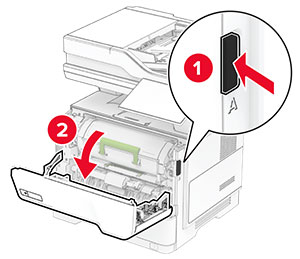
  1. 打開 A 門。

    The button on the right side of the printer is pushed, and then the door is opened.
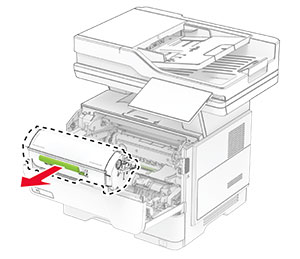
  2. 取出使用過的碳粉匣。

    The toner cartridge is pulled out of the printer.
  3. 拆開新碳粉匣的包裝。

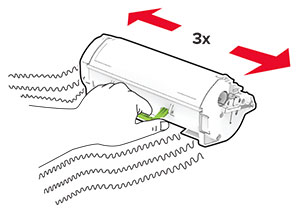
  4. 搖晃碳粉匣,使碳粉重新分佈均勻。

    The toner cartridge is shaken left to right three times.
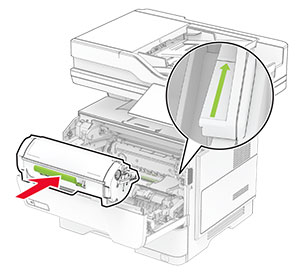
  5. 插入新的碳粉匣。

    The toner cartridge is inserted into the printer.
  6. 關上 A 門。

更換成像組件

  1. 打開 A 門。

    The button on the right side of the printer is pushed, and then the door is opened.
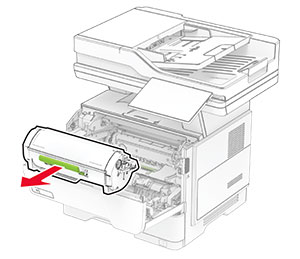
  2. 卸下碳粉匣。

    The toner cartridge is pulled out of the printer.
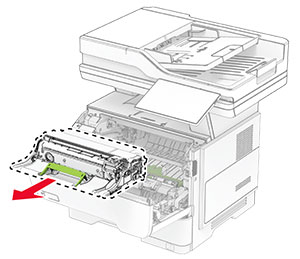
  3. 移除使用過的成像組件。

    The imaging unit is pulled out of the printer.
  4. 拆開新成像組件的包裝。

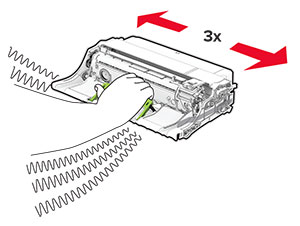
  5. 搖晃成像組件以利碳粉重新分佈。

    The imaging unit is shaken left to right three times.
    請當心—潛藏損壞危險性: 成像組件直接曝露在光線下的時間不宜超過 10 分鐘。曝露在光線下太久,會導致列印品質發生問題。
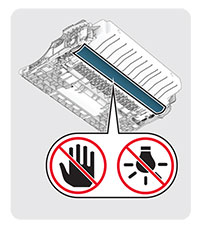
    請當心—潛藏損壞危險性: 不要觸摸感光鼓。碰觸感光鼓可能會影響後續列印工作的品質。
    The bottom side of the imaging unit containing the photoconductor drum.
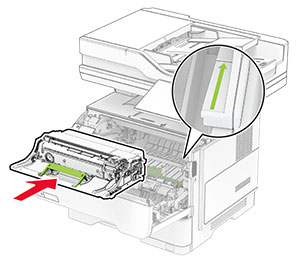
  6. 插入新成像組件。

    The imaging unit is inserted into the printer.
  7. 插入碳粉匣。

    The toner cartridge is inserted into the printer.
  8. 關上 A 門。

更換裝釘匣填補釘排

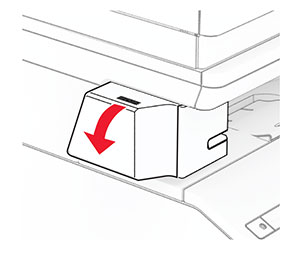
  1. 打開便利裝訂器存取門。

    The convenience stapler door is opened.
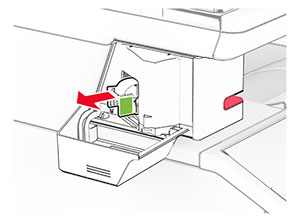
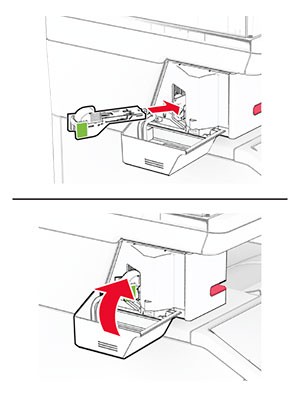
  2. 卸下裝釘匣。

    The staple cartridge is pulled out.
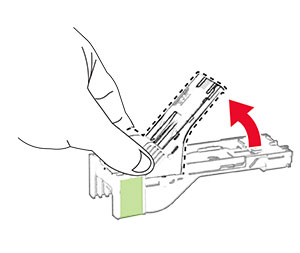
  3. 卸下空裝釘匣填補釘排。

    The empty staple refill is pulled out of the staple cartridge.
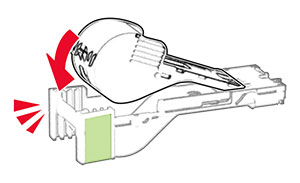
  4. 插入新的裝釘匣填補釘排,直到其卡入定位。

    The new staple refill is inserted into the staple cartridge.
  5. 插入裝釘匣,然後關閉便利裝訂器存取門。

    The staple cartridge is inserted into the convenience stapler, and the convenience stapler access door is closed.
  6. 請注意: 檢查 LED 指示燈狀態。藍燈亮起表示便利裝訂器已備妥可供使用。

更換便利裝訂器電源供應器

  1. 關閉印表機電源。

  2. 從電源插座拔除電源線,然後再從印表機拔除。

  3. 從電源插座拔掉電源供應器。

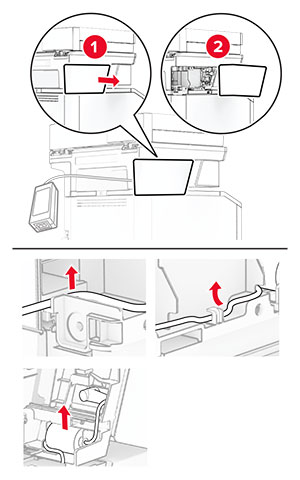
  4. 卸下柱狀蓋板和電源供應器電纜。

    The column cover and power supply cable are removed.
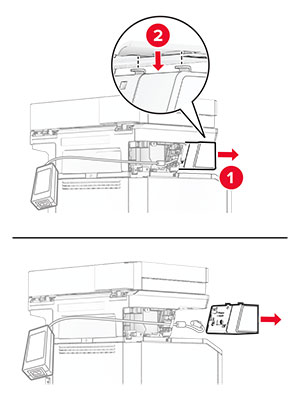
  5. 卸下便利裝訂器。

    The convenience stapler is removed from the printer.
  6. 卸下使用過的電源供應器。

    The used power supply is removed from the printer.
  7. 打開新電源供應器的包裝。

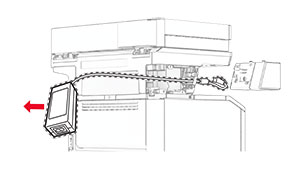
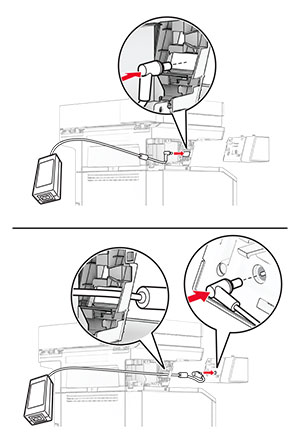
  8. 穿過印表機插入新電源供應器,然後將其連接至便利裝釘器。

    The power supply is connected to the convenience stapler and positioned correctly from the printer.
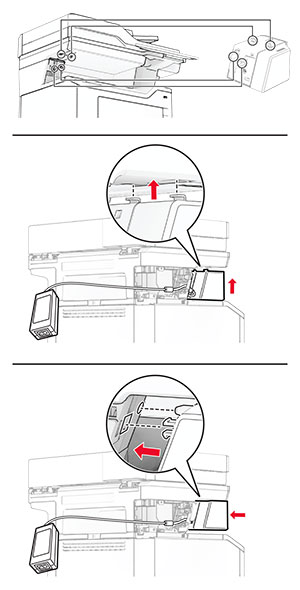
  9. 安裝便利裝訂器。

    The convenience stapler is installed into its location on the printer column.
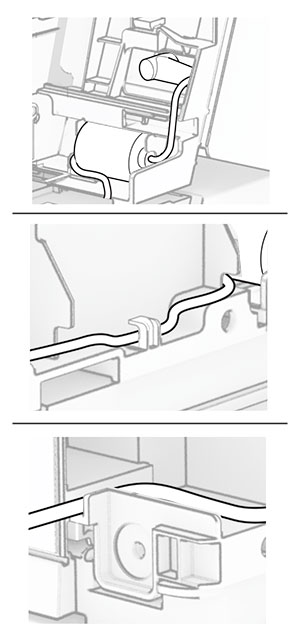
  10. 使電源供應器正確就位。

    The power supply is inserted into the printer column to keep it in place.
  11. 裝上柱形蓋板。

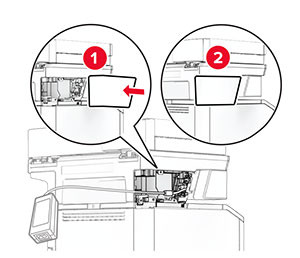
    The column cover is attached and the power supply is positioned properly.
    請注意: 牢牢正確連接電源供應器。
    The power supply is covered.
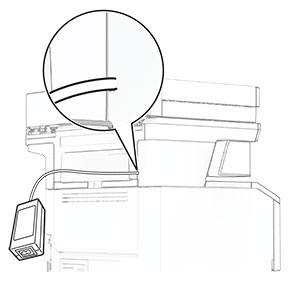
  12. 將便利裝訂器電源線的一端連接到電源,然後將另一端連接到電源插座。

  13. 將印表機電源線的一端連接到印表機,然後將另一端連接到電源插座。

    標準請當心圖示 請當心—潛在受傷危險性: 為避免發生火災或觸電的危險,請將電源線連接至產品附近額定電壓相符且正確接地的電源插座,以便於使用。
  14. 開啟印表機電源。

更換 MarkNet N8450 無線列印伺服器

觸電危險請當心圖示 請當心—觸電危險: 為避免發生電擊的風險,若您是在安裝印表機之後,才要取用控制板或安裝選購性硬體或記憶裝置,請先關閉印表機電源,並從電源插座拔除電源線,再繼續作業。若您有任何其他裝置連接至印表機,請同時關閉它們的電源,並拔下所有連接到印表機的電纜。
請注意: 此作業需要使用一字螺絲起子。
  1. 關閉印表機電源。

  2. 從電源插座拔除電源線,然後再從印表機拔除。

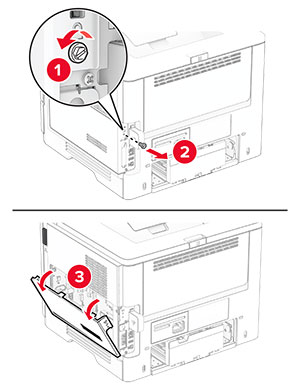
  3. 打開控制板蓋板。

    請當心—潛藏損壞危險性: 控制板上的電子元件很容易受靜電而毀損。觸摸控制板的電子元件或連結器之前,請先觸摸印表機上的金屬表面。
    The cover on the right side of the printer is opened.
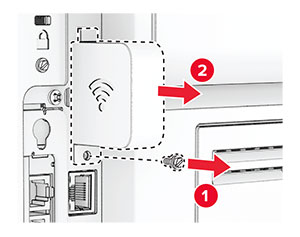
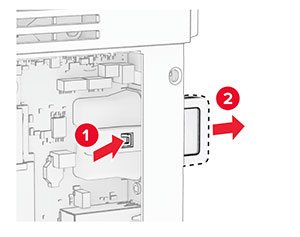
  4. 卸下無線列印伺服器蓋板。

    The cover of the wireless print server is removed.
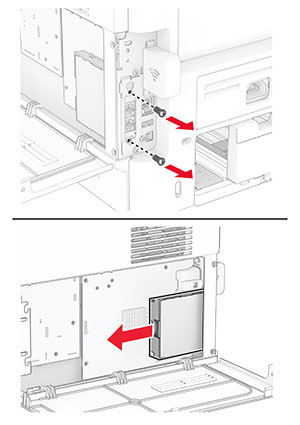
  5. 卸下傳真卡。

    The fax card is removed from the controller board.
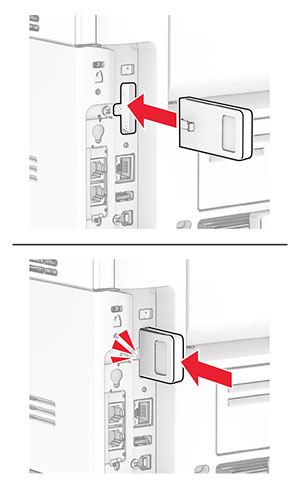
  6. 取出使用過的無線列印伺服器。

    The wireless print server is pulled out of its slot.
  7. 打開無線列印伺服器的包裝。

  8. 插入新的無線列印伺服器,直到其卡入定位。

    The wireless print server is inserted into its slot.
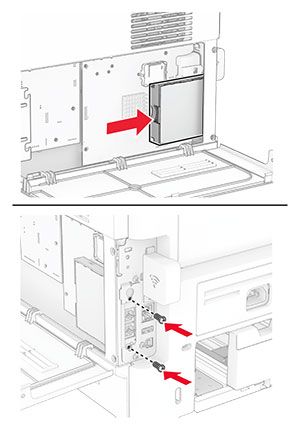
  9. 連接傳真卡,然後安裝螺絲。

    The fax card is inserted in the controller board.
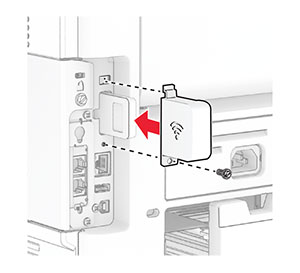
  10. 連接無線列印伺服器蓋板,然後安裝螺絲。

    The wireless print server cover is attached.
  11. 關閉控制板蓋板,然後安裝螺絲。

    The cover at the right side of the printer is closed.
  12. 將電源線連接至印表機,然後再連接至電源插座。

    標準請當心圖示 請當心—潛在受傷危險性: 為避免發生火災或觸電的危險,請將電源線連接至產品附近額定電壓相符且正確接地的電源插座,以便於使用。
  13. 開啟印表機電源。

更換分頁器滾輪

  1. 關閉印表機電源。

  2. 從電源插座拔除電源線,然後再從印表機拔除。

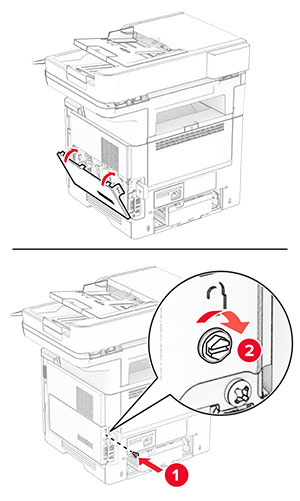
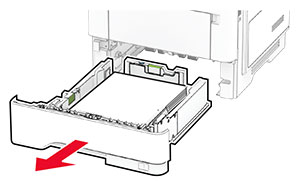
  3. 取出紙匣組件。

    The tray is pulled out of the printer.
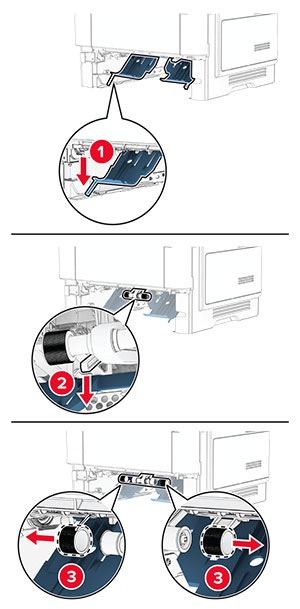
  4. 取出用過的分頁器滾輪。

    The used pick tires are removed from the pick roller assembly.
  5. 拆封新的分頁器滾輪。

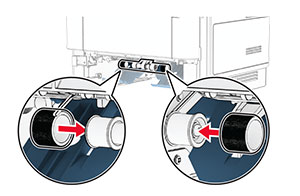
  6. 插入新的分頁器滾輪。

    The new pick tires are inserted.
  7. 插入紙匣組件。

  8. 將電源線連接至印表機,然後再連接至電源插座。

    標準請當心圖示 請當心—潛在受傷危險性: 為避免發生火災或觸電的危險,請將電源線連接至產品附近額定電壓相符且正確接地的電源插座,以便於使用。
  9. 開啟印表機電源。

更換掃描器玻璃墊

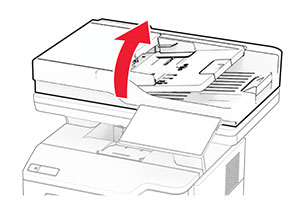
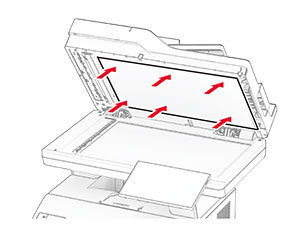
  1. 打開掃描器蓋板。

    The scanner cover is lifted.
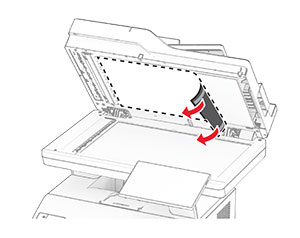
  2. 卸下使用過的掃描器玻璃面板墊。

    The used scanner glass pad is peeled off from the scanner cover.
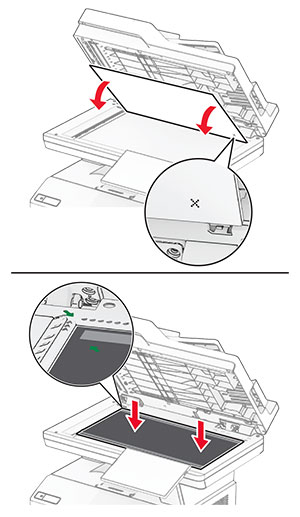
  3. 拆開新掃描器玻璃面板墊的包裝。

  4. 將新的掃描器玻璃面板墊對齊掃描器玻璃面板。

    The new scanner glass pad is placed on the scanner glass, with the adhesives facing toward the scanner cover.
  5. 關上掃描器蓋板以連接新的掃描器玻璃面板墊。

    The scanner cover is closed, with the adhesives facing toward it.
  6. 打開掃描器蓋板。

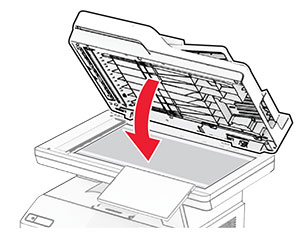
  7. 對新的掃描器玻璃面板墊施力以固定它。

    The scanner glass pad is pressed to the back of the scanner cover.
  8. 關上掃描器蓋板。

更換自動送稿器滾輪

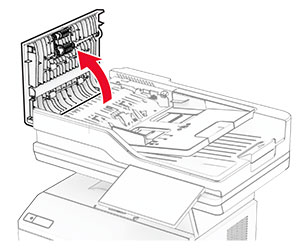
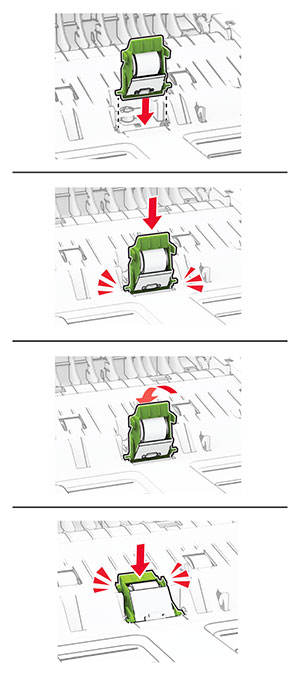
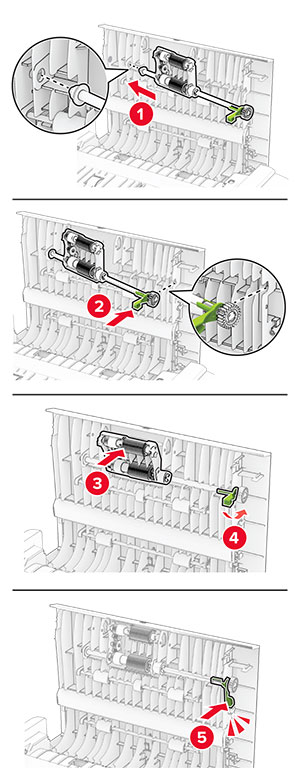
  1. 打開 C 門。

    Door C is pulled up.
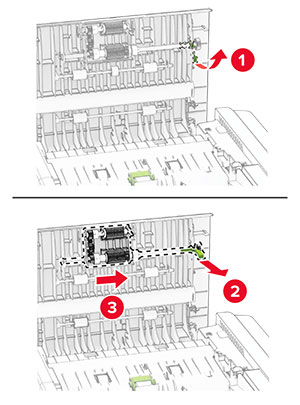
  2. 卸下使用過的自動送稿器取紙滾輪。

    A green latch is released, then pulled up to remove the ADF pick roller.
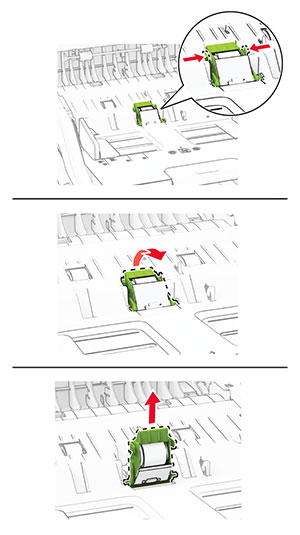
  3. 卸下使用過的自動送稿器分頁滾輪。

    Both sides of the green latches are pinched to unlock and remove the ADF separator roller.
  4. 拆封新的自動送稿器取紙滾輪和自動送稿器分頁滾輪。

  5. 插入新的自動送稿器分頁滾輪,直到其 卡入 定位。

    The new ADF separator roller is inserted.
  6. 插入新的自動送稿器取紙滾輪,直到其 卡入 定位。

    The new ADF pick roller is inserted, then pulled down.
  7. 關上 C 門。

重新設定耗材用量計數器

  1. 從主畫面,觸控設定 > 裝置 > 維護 > 配置功能表 > 耗材用量和計數器

  2. 選擇您要重設的計數器。

請當心—潛藏損壞危險性: 沒有回收計劃合約條款的耗材與零件可能可以重設與再製造。然而,製造商的保固不涵蓋因使用非原廠耗材或零件造成的任何損壞。若針對未適當再製的耗材或零件重設計數器,可能會造成印表機損壞。重設耗材或零件計數器之後,印表機可能會顯示錯誤訊息,指示出現重設項目。