Understanding the automated certificate management feature
You can configure MVE to manage printer certificates automatically, and then install them to the printers through configuration enforcement. The following diagram describes the end-to-end process of the automated certificate management feature.
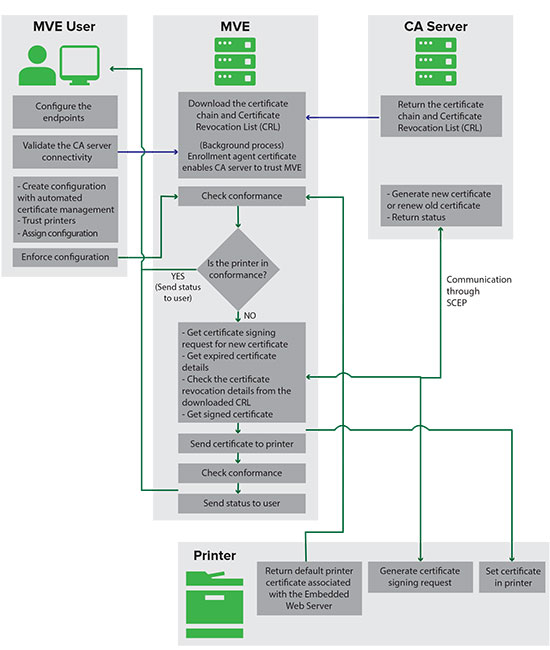
The certificate authority endpoints, such as the CA server and server address, must be defined in MVE.
The following CA servers are supported:
OpenXPKI CA—For more information, see Managing certificates using OpenXPKI Certificate Authority.
Microsoft CA Enterprise—For more information, see Managing certificates using Microsoft Certificate Authority.
The connection between MVE and the CA servers must be validated. During validation, MVE communicates with the CA server to download the certificate chain and the Certificate Revocation List (CRL). The enrolment agent certificate is also generated. This certificate enables the CA server to trust MVE.
For more information on defining the endpoints and validation, see Configuring MVE for automated certificate management.
A configuration that is set to Use Markvision to manage device certificates must be assigned and enforced to the printer.
For more information, see the following topics:
During enforcement, MVE checks the printer for conformance. The default printer certificate is validated against the certificate chain downloaded from the CA server. If the printer is out of conformance, a certificate signing request (CSR) is requested for the printer. MVE communicates with the CA server through the Simple Certificate Enrollment Protocol (SCEP). The CA server generates the new certificate, and then MVE sends the certificate to the printer.
 on the upper-right corner of the page.