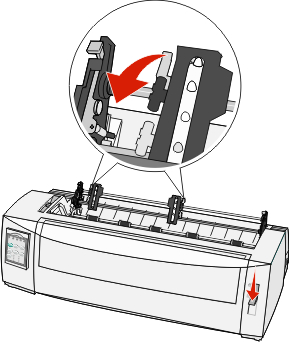
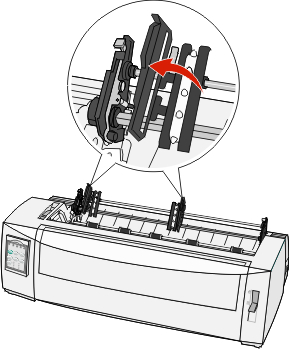
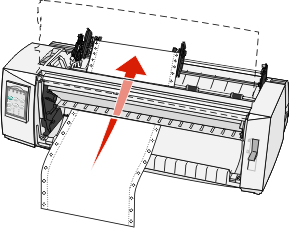
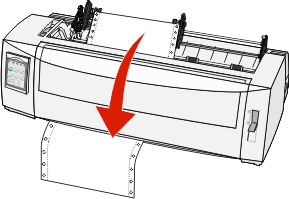
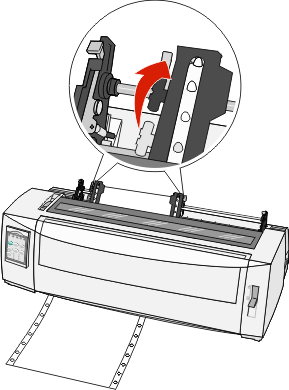
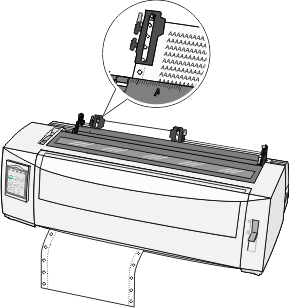
You can load continuous paper utilizing four different paper paths, depending on whether you have the push tractor or the pull tractor installed. The factory default setting for your printer is the push tractor position.
| Note: If you have installed the optional Auto Sheet Feeder or Tractor 2, then see the documentation that came with the option for paper loading instructions. |
Plug the printer power cord to a properly grounded electrical outlet, and then press Start/Stop.
Make sure the paper path is clear.
| Note: If a cut form or envelope is loaded in the printer, then press FormFeed to remove it. |
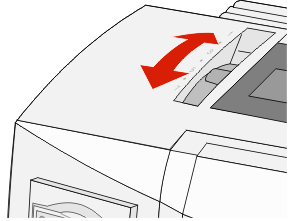
Set the forms thickness lever to a setting corresponding with the paper thickness you are using.
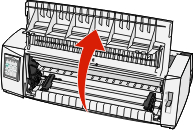
Pull up the front cover.
Move down the paper select lever to the
position.
Pull up the left and right tractor locking levers to unlock the tractors.
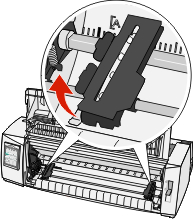
Open the left and right tractor doors, and then place the paper holes over the second or third pins of the tractor unit.
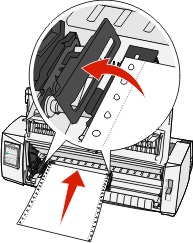
Notes:
Close the left and right tractor doors.
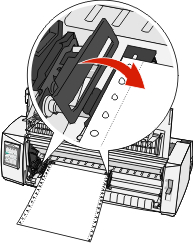
Move the tractor to align the left margin on your paper with the [A symbol printed on the rear plate.
| Note: The distance from the [A symbol to the left edge of the paper determines the width of the left margin. |
Push down the left tractor locking lever to lock the tractor in place.
Remove slack from the paper, and then lock the right locking lever.
Close the front cover.
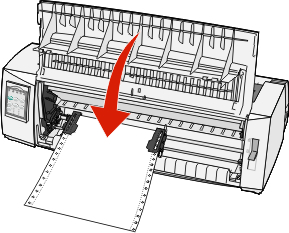
Press Start/Stop to load the paper to Top-Of-Form, and then put the printer online.
Notes:
Make sure the tractor is in the pull position.
| Note: If you have installed the optional Auto Sheet Feeder or Tractor 2, then see the documentation that came with your option for paper loading instructions. |
Plug the printer power cord to a properly grounded electrical outlet, and then press Start/Stop.
Make sure the paper path is clear.
| Note: If a cut form or envelope is loaded in the printer, then press FormFeed to remove it. |
Set the forms thickness lever to a setting corresponding with the paper thickness you are using.

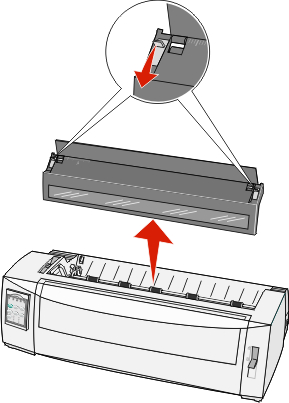
Remove the ribbon access cover.
Move the paper select lever down to the
position.
Pull up the left and right tractor locking levers to unlock the tractors.

Open the left and right tractor doors.

Open the front cover.
Insert paper into the front of the printer, between the metal and plastic plates.
| Note: Push or pull the paper through the paper path until it passes the printhead. |

Close the front cover.

Place the paper holes over the tractor pins.
Notes:
Close the left and right tractor doors.
Replace the ribbon access cover.
Move the tractor to align the left margin on the paper with the [A symbol printed on the rear plate.
| Note: The distance from the [A symbol to the left edge of the paper determines the width of the left margin. |
Push down the left tractor locking lever to lock the tractor in place.
Remove slack from the paper, and then lock the right locking lever.

Open the control panel cover to access layer 2.
Press Micro
, Micro
, or LineFeed to move the paper to the Top-Of-Form you want to use.
| Note: Use the second form to set Top-Of-Form alignment. To do this, align the horizontal lines (located on the platen) with the Top-Of-Form you want. |
Press Set TOF to set the Top-Of-Form.
| Note: Top-Of-Form is not saved if the printer is turned off or runs out of paper when using the pull tractor. |
Make sure the printer is online and the Ready light is on and solid green.
| Note: If the Ready light is not on and solid green, then press Start/Stop. |
Notes:
Plug the printer power cord to a properly grounded electrical outlet, and then press Start/Stop.
Make sure the paper path is clear.
| Note: If a cut form or envelope is loaded in the printer, then press FormFeed to remove it. |
Set the forms thickness lever to 7.

Move down the paper select lever to the
position.
Remove the ribbon access cover.

Pull up the left and right tractor locking levers to unlock the tractors.

Open the left and right tractor doors.

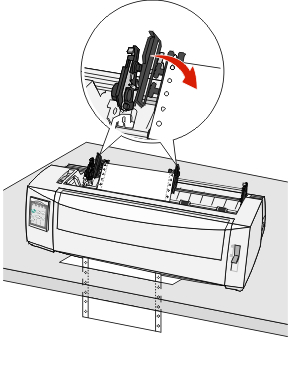
Insert the paper through the bottom slot of the printer.
| Note: Push or pull the paper through the paper path until it passes the printhead. |
Place the paper holes over the tractor pins.

Notes:
Close the left and right tractor doors.
Replace the ribbon access cover.
Move the tractor to align the left margin on the paper with the [A symbol printed on the rear plate.
| Note: The distance from the [A symbol to the left edge of the paper determines the width of the left margin. |

Push down the left tractor locking lever to lock the tractor in place.
Remove slack from the paper, and then lock the right locking lever.
Open the control panel cover to access layer 2.
Press Micro
, Micro
, or LineFeed to move the paper to the Top-Of-Form you want to use.
Press Set TOF to set the Top-Of-Form.
| Note: Top-Of-Form is not saved if the printer is turned off or runs out of paper when using the pull tractor. |
Make sure the printer is online and the Ready light is on and solid green.
| Note: If the Ready light is not on and solid green, then press Start/Stop. |