Printing in black and white
From the printer control panel, navigate to:
 > Settings > Settings > Print Settings > Quality Menu > Print Mode > Black Only >
From the Paper menu on the printer control panel, set the paper type and size to match the paper loaded.
Send the print job:
With a document open, click File > Print.
Click Properties, Preferences, Options, or Setup.
Adjust the settings, if necessary.
Click OK > Print.
Customize the settings in the Page Setup dialog if necessary:
With a document open, choose File > Page Setup.
Choose a paper size or create a custom size to match the paper loaded.
Click OK.
Customize the settings in the Page Setup dialog if necessary:
With a document open, choose File > Print.
If necessary, click the disclosure triangle to see more options.
From the Print dialog and pop-up menus adjust the settings if necessary.
| Note: To print on a specific paper type, adjust the paper type setting to match the paper loaded, or select the appropriate tray or feeder. |
Click Print.
From the printer control panel, navigate to:
> Settings > Settings > Print Settings > Quality Menu > Print Mode > Black Only >
Open a Web browser, and then type the IP address of the printer in the address field.
Notes:
Click Settings > Print Settings > Quality Menu > Toner Darkness.
Adjust the toner darkness, and then click Submit.
From the printer control panel, navigate to:
> Settings > > Settings > > Print Settings > > Quality Menu > > Toner Darkness
Adjust the toner darkness, and then press .
The Max Speed and Max Yield settings let you choose between a faster print speed or a higher toner yield. Max Yield is the factory default setting.
Max Speed—This lets you print in either black or color depending on what is set in the printer driver. The printer prints in color unless Black Only is selected in the printer driver.
Max Yield—This lets you switch from black to color based on the color content found on each page. Frequent color mode switching can result in slower printing if the content of pages is mixed.
Open a Web browser, and then type the printer IP address in the address field.
Notes:
Click Settings > Print Settings > Setup Menu.
From the Printer Usage list, select Max Speed or Max Yield.
Click Submit.
From the printer control panel, navigate to:
> Settings > Settings > Print Settings > Setup Menu
From the Printer Usage list, select Max Speed or Max Yield.
Press .
Notes:
Insert a flash drive into the USB port.
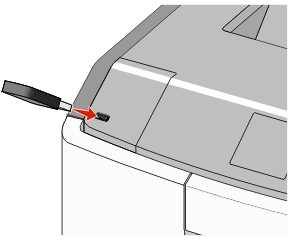
Notes:
| Warning—Potential Damage: Do not touch the USB cable, any network adapter, any connector, the memory device, or the printer in the areas shown while actively printing, reading, or writing from the memory device. A loss of data can occur. |
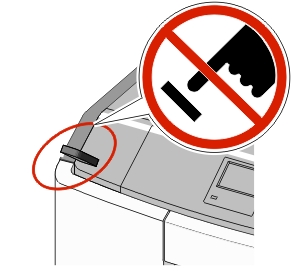
From the printer control panel, select the document you want to print.
Press the left or right arrow button to specify the number of copies for printing, and then press .
Notes:
Flash drive | File type |
|---|---|
Notes:
| Documents:
Images:
|
To download a compatible mobile printing application, visit www.lexmark.com/mobile.
| Note: Mobile printing applications may also be available from your mobile device manufacturer. |
From the printer control panel, navigate to:
> Settings > > Security > > Confidential Print > select the print job type
Print job type | Description |
|---|---|
Notes:
| |
Max Invalid PIN | Limits the number of times an invalid PIN can be entered. Note: When the limit is reached, the print jobs for that user name and PIN are deleted. |
Confidential Job Expiration | Lets you hold print jobs in the computer until you enter the PIN from the printer control panel. Note: The PIN is set from the computer. It must be four digits, using the numbers 0–9. |
Repeat Job Expiration | Lets you print and store print jobs in the printer memory for reprinting. |
Verify Job Expiration | Lets you print one copy of a print job while the printer holds the remaining copies. It allows you to examine if the first copy is satisfactory. The print job is automatically deleted from the printer memory once all copies are printed. |
Reserve Job Expiration | Lets you store print jobs for printing at a later time. The print jobs are held until deleted from the Held Jobs menu. |
Press .
| Note: Confidential and Verify print jobs are automatically deleted from memory after printing. Repeat and Reserve jobs are held in the printer until you choose to delete them. |
With a document open, click File > Print.
Click Properties, Preferences, Options, or Setup.
Click Print and Hold.
Select the print job type (Confidential, Repeat, Reserve, or Verify), and then assign a user name. For a confidential print job, also enter a four-digit PIN.
Click OK or Print.
From the printer control panel, release the print job.
For confidential print jobs, navigate to:
Held jobs > select your user name > Confidential Jobs > enter the PIN > select the print job > specify the number of copies > Print
For other print jobs, navigate to:
Held jobs > select your user name > select the print job > specify the number of copies > Print
With a document open, choose File > Print.
If necessary, click the disclosure triangle to see more options.
From the print options or Copies & Pages pop-up menu, choose Job Routing.
Select the print job type (Confidential, Repeat, Reserve, or Verify), and then assign a user name. For a confidential print job, also enter a four-digit PIN.
Click OK or Print.
From the printer control panel, release the print job:
For confidential print jobs, navigate to:
Held jobs > select your user name > Confidential Jobs > enter the PIN > select the print job > specify the number of copies > Print
For other print jobs, navigate to:
Held jobs > select your user name > select the print job > specify the number of copies > Print
From the printer control panel, navigate to:
> Settings > > Reports > > Print Fonts
Press the up or down arrow button to select the font setting.
Press .
| Note: The PPDS fonts appear only when the PPDS data stream is activated. |
From the printer control panel, navigate to:
> Settings > Reports > > Print Directory >
| Note: The Print Directory menu item appears only when an optional flash memory or printer hard disk is installed. |
From the printer control panel, press  .
.
When a list of print jobs appears, select the job to cancel, and then press .
Press to go back to the home screen.
Open the printers folder, and then select your printer.
From the print queue, select the print job you want to cancel, and then delete it.
From System Preferences in the Apple menu, navigate to your printer.
From the print queue, select the print job you want to cancel, and then delete it.