
| | CAUTION—SHOCK HAZARD: Do not use the fax feature during a lightning storm. Do not set up this product or make any electrical or cabling connections, such as the fax feature, power cord, or telephone, during a lightning storm. |
Connect the printer to the computer using a USB cable or to the network using an Ethernet cable.
Make sure to match the following:
The USB symbol on the cable with the USB symbol on the printer
The appropriate Ethernet cable with the Ethernet port
| Warning—Potential Damage: Do not touch the USB cable, any network adapter, or the printer in the area shown while actively printing or scanning. Loss of data or a malfunction can occur. |
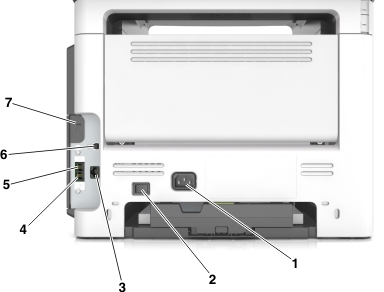
Use the | To | |
|---|---|---|
1 | Printer power cord socket | Connect the printer to a properly grounded electrical outlet. |
2 | Power switch | Turn the printer on or off. |
3 | Ethernet port | Connect the printer to an Ethernet network. |
4 | EXT port | Connect additional devices (telephone or answering machine) to the printer and the telephone line. Use this port if you do not have a dedicated fax line for the printer and if this connection method is supported in your country or region. Note: Remove the adapter plug to access the port. |
5 | LINE port | Connect the printer to an active telephone line through a standard wall jack (RJ-11), DSL filter, or VoIP adapter, or any other adapter that allows you to access the telephone line to send and receive faxes. |
6 | USB printer port | Connect the printer to a computer. |
7 | Security slot | Attach a lock that will secure the printer in place. |