Replacing a photoconductor
There are three different display messages that may appear when a photoconductor replacement is necessary: 84 Replace <color> photoconductor, 84 <color> photoconductor nearly low, or 84 <color> photoconductor low.
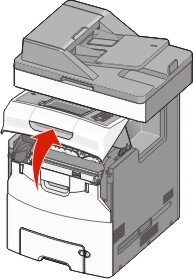
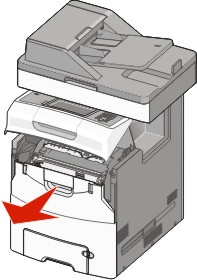
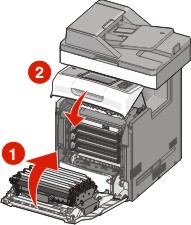
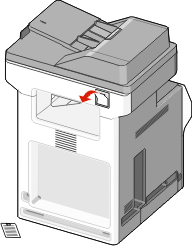
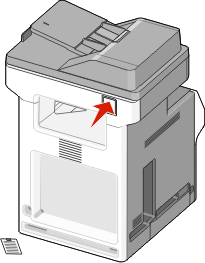
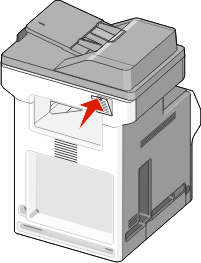
Open the upper front door, and then open the lower front door.
| Warning—Potential Damage: To avoid overexposing the photoconductors, do not leave the front doors open for more than 10 minutes. |
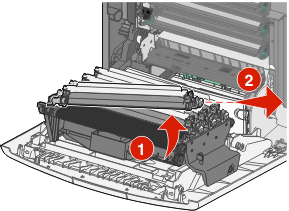
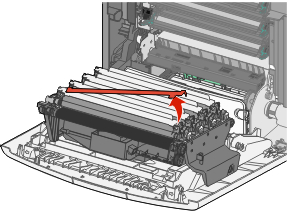
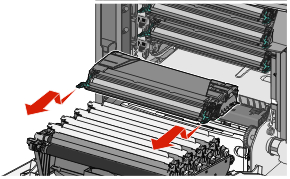
Pull the specified photoconductor up, and then slide it to the right to remove it from the printer.
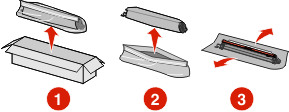
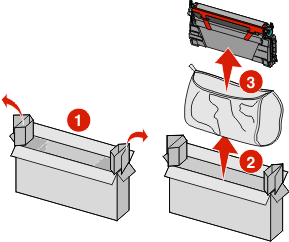
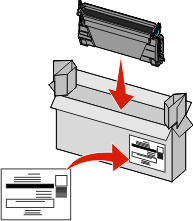
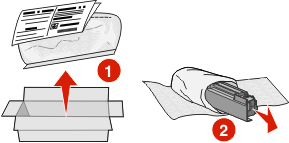
Unpack the replacement photoconductor.
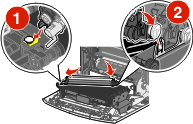
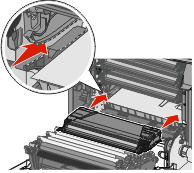
Align and insert the left end of the photoconductor, and then press the right end into place.
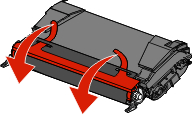
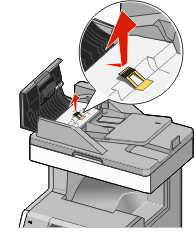
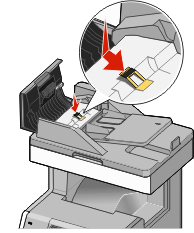
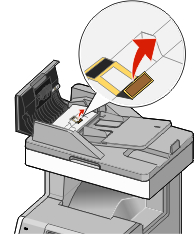
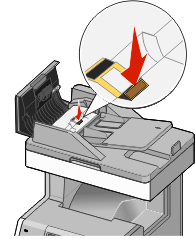
Remove the red packing strip from the top of the photoconductor.
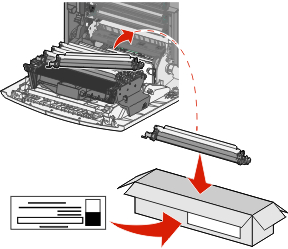
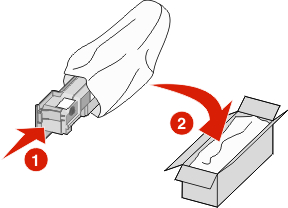
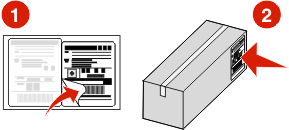
Place the old photoconductor into the replacement photoconductor box, and then place the return label on the box and mail it to Lexmark for recycling.
Close the lower front door, and then close the upper front door.
Resetting the maintenance counter
After installing a new photoconductor, the maintenance counter must be reset. Use one of the following two procedures:
If a “replace” or “low” message appears
Use these steps when a photoconductor is replaced and 84 Replace <color> photoconductor, 84 <color> photoconductor nearly low, or 84 <color> photoconductor low appears:
On the home screen, touch Status/Supplies.
Touch Supply Replaced.
When Replaced <color> photoconductor appears, touch Yes.
Notes:
- If more than one photoconductor is replaced, you may need to repeat steps 1 through 3.
- When Ready appears, the counter is reset.
If a “replace” or “low” message does not appear
Use these steps when a photoconductor is replaced and a “replace” or “low” message does not appear:
On the home screen, touch  .
.
Touch Menus.
Touch Supplies Menu.
Touch Replace Supplies.
Touch the button that indicates the supply item you replaced.
All
Cyan Photoconductor
Magenta Photoconductor
Yellow Photoconductor
Black Photoconductor
When <color> photoconductor replaced appears, touch Yes.
Touch  to return to the home screen.
Replacing a toner cartridge
When 88 Replace <color> cartridge, 88 <color> cartridge nearly low, or 88 <color> cartridge low appears on the display, or when print becomes faded, try to extend the life of the specified cartridge.
Open the upper front door, and then open the lower front door.
| Warning—Potential Damage: To avoid overexposing the photoconductors, do not leave the front doors open for more than 10 minutes. |
Pull up and out on the green tabs of the specified cartridge to remove it from the printer.
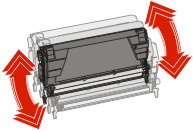
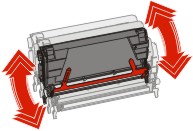
Shake the cartridge front to back and side to side to redistribute the toner.
Reinsert the cartridge to continue printing.
Repeat this process multiple times until printed text and graphics remain faded.
When printed text and graphics remain faded, replace the specified cartridge. Repeat steps 1 and 2, and then continue with the following steps.
Unpack a new cartridge.
Place the old cartridge into the replacement cartridge box, and then place the return label on the box and mail it to Lexmark for recycling.
Shake the new cartridge front to back and side to side to evenly distribute the toner.
Remove the red packing strips from the new cartridge.
Insert the new cartridge into the printer. Push the toner cartridge in as far as it will go. The cartridge clicks into place when correctly installed.
Close the lower front door, and then close the upper front door.