更換零件及耗材

更換碳粉匣

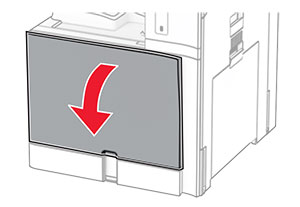
  1. 打開前門。

    The front door is pulled down.
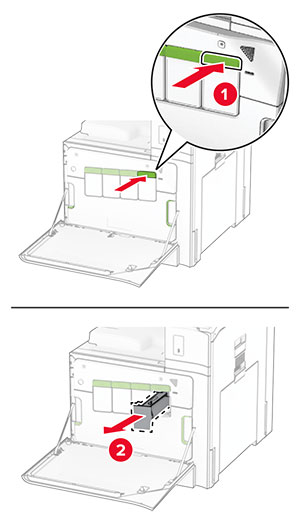
  2. 取出使用過的碳粉匣。

    The green buttons are pushed, and then the cartridges are pulled out from the printer.
  3. 拆開新碳粉匣的包裝。

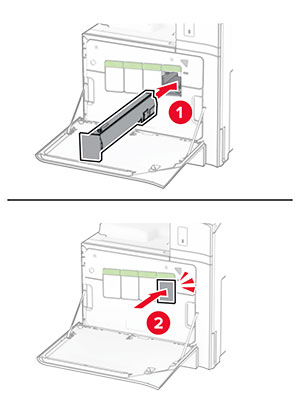
  4. 插入新的碳粉匣,直到其卡入定位。

    Toner cartridge is aligned, and then slid into the printer.
  5. 關上門。

更換黑色成像組件

  1. 打開前門。

    The front door is pulled down.
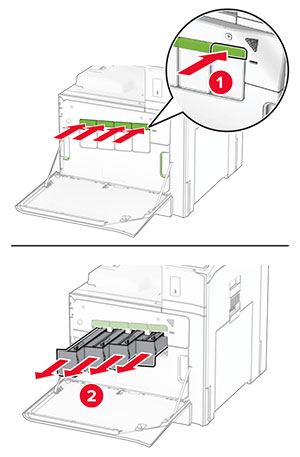
  2. 取出碳粉匣。

    The green buttons are pushed, and then the cartridges are pulled out from the printer.
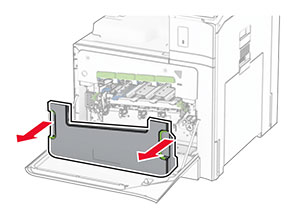
  3. 取出廢棄碳粉回收瓶。

    Both sides of the waste toner bottle are grasped, and then the bottle is pulled out.
    請注意: 若要避免碳粉溢出,請將回收瓶垂直擺放。
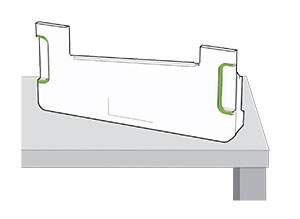
    Proper position of the waste toner bottle upon removal from the printer.
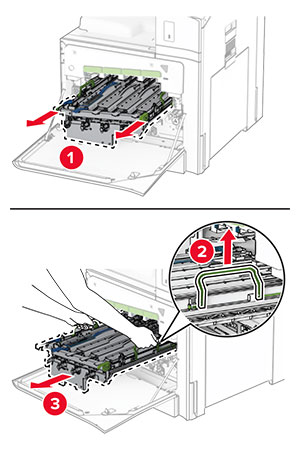
  4. 移除成像套件。

    The green latches of imaging kit are grasped and lifted, and the imaging kit is pulled out of the printer.
    請當心—潛藏損壞危險性: 請勿將成像套件直接曝露在光線下。曝露在光線下太久,會導致列印品質發生問題。
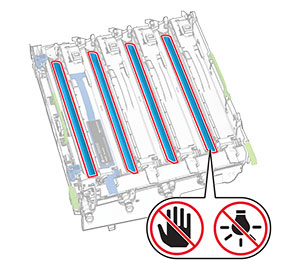
    請當心—潛藏損壞危險性: 不要觸摸感光鼓。碰觸感光鼓可能會影響後續列印工作的品質。
    A do not touch icon on the photoconductor drum.
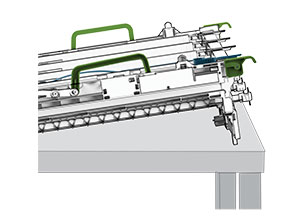
    請注意: 將成像套件放在乾淨平面和直立位置,以免感光鼓刮傷或受損。
    Proper position of the imaging kit after it is removed from the printer.
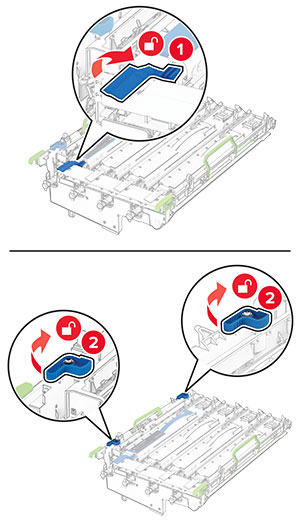
  5. 解鎖使用過的黑色成像組件。

    The blue latches of the black imaging unit are unlocked.
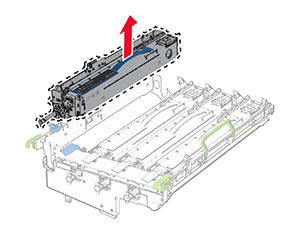
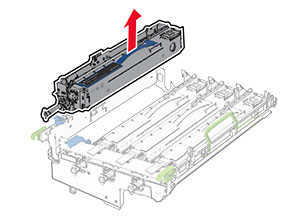
  6. 卸下使用過的黑色成像組件。

    The used imaging unit is pulled out, and then removed from the imaging kit.
  7. 拆開全新黑色成像組件的包裝。

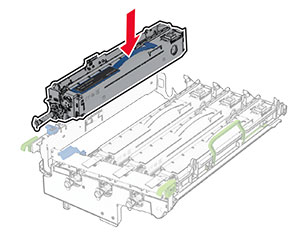
  8. 插入全新黑色成像組件的包裝。

    The new imaging unit is inserted into the imaging kit.
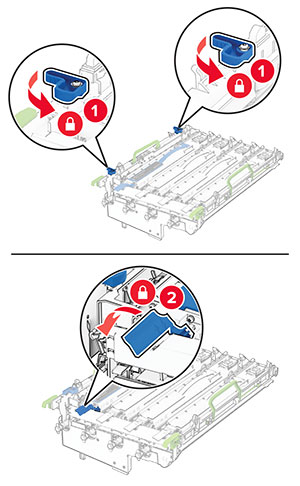
  9. 將全新黑色成像組件鎖入定位。

    The blue latches of the imaging unit are locked.
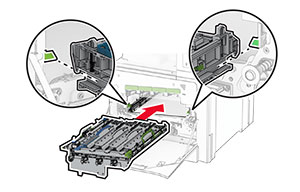
  10. 插入成像套件,直到其完全插入。

    The imaging kit is inserted into the printer.
  11. 插入廢棄碳粉回收瓶,直到其卡入定位。

    The waste toner bottle is attached to the printer.
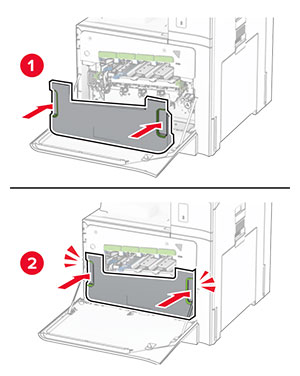
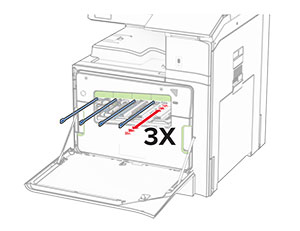
  12. 輕輕拉出列印頭刷,然後清潔列印頭鏡片。

    The printhead wipers are pulled out, and then the printhead lenses are cleaned.

    如需清潔列印頭鏡片的相關資訊,請參閱清潔列印頭鏡片

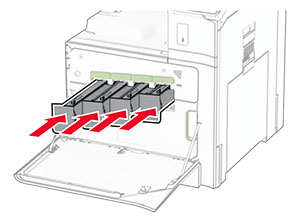
  13. 插入碳粉匣。

    The toner cartridges are inserted into the printer.
  14. 關上門。

更換彩色成像套件

  1. 打開前門。

    The front door is pulled down.
  2. 取出碳粉匣。

    The green buttons are pushed, and then the cartridges are pulled out from the printer.
  3. 取出廢棄碳粉回收瓶。

    Both sides of the waste toner bottle are grasped, and then the bottle is pulled out.
    請注意: 若要避免碳粉溢出,請將回收瓶垂直擺放。
    Proper position of the waste toner bottle after it is removed from the printer.
  4. 移除使用過的成像套件。

    The green latches of imaging kit are grasped and lifted, and the used imaging kit is pulled out of the printer.
    請注意: 將成像套件放在乾淨平面和直立位置,以免感光鼓刮傷或受損。
    Proper position of the imaging kit after it is removed from the printer.
  5. 解鎖黑色成像組件。

    The blue latches of the black imaging unit are unlocked.
  6. 卸下黑色成像組件。

    The imaging unit is pulled out, and then removed from the imaging kit.
    請注意: 請勿丟棄黑色成像組件。它將會安裝在新的成像套件上。
  7. 拆開全新成像套件的包裝。

    請注意: 成像套件包含成像籃以及靛青色、洋紅色及鮮黃色顯像組件。
    請當心—潛藏損壞危險性: 請勿將成像套件直接曝露在光線下。曝露在光線下太久,會導致列印品質發生問題。
    請當心—潛藏損壞危險性: 不要觸摸感光鼓。碰觸感光鼓可能會影響後續列印工作的品質。
    Warning icons are placed on the photoconductor drum.
  8. 將黑色成像組件插入新的成像套件。

    The imaging unit is inserted into the imaging kit.
  9. 將黑色成像組件鎖入定位。

    The blue latches of the imaging unit are locked.
  10. 插入新的像套件,直到其完全插入。

    The imaging kit is inserted into the printer.
  11. 插入廢棄碳粉回收瓶,直到其卡入定位。

    The waste toner bottle is attached to the printer.
  12. 輕輕拉出列印頭刷,然後清潔列印頭鏡片。

    The printhead wipers are pulled out, and then the printhead lenses are cleaned.

    如需清潔列印頭鏡片的相關資訊,請參閱清潔列印頭鏡片

  13. 插入碳粉匣。

    The toner cartridges are inserted into the printer.
  14. 關上門。

更換廢棄碳粉回收瓶

  1. 打開前門。

    The front door is pulled down.
  2. 卸下使用過的廢棄碳粉回收瓶。

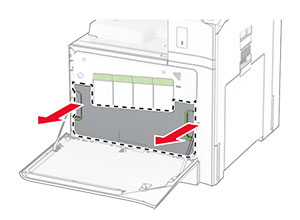
    Both sides of the waste toner bottle are grasped, and then the bottle is pulled out.
    請注意: 若要避免碳粉溢出,請將回收瓶垂直擺放。
    Proper position of the waste toner bottle after it is removed from the printer.
  3. 拆開新廢棄碳粉回收瓶的包裝。

  4. 插入新的廢棄碳粉回收瓶,直到其卡入定位,然後關上門。

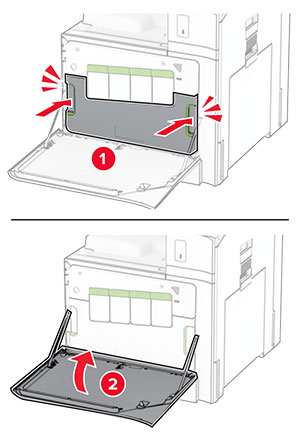
    The waste toner bottle is attached to the printer.

更換加熱熔合組件

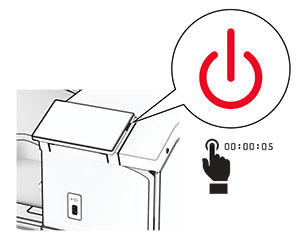
  1. 關閉印表機電源。

    The power button on the side of the control panel is pressed for 5 seconds.
  2. 從電源插座拔除電源線,然後再從印表機拔除。

  3. 打開 B 門。

    表面高溫請當心圖示 請當心—表面高溫: 印表機內部的溫度可能很高。為降低高溫組件導致受傷的風險,請先讓表面冷卻再碰觸。
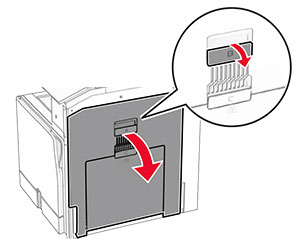
    Door B of the printer is opened.
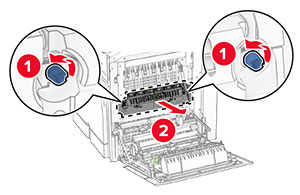
  4. 解鎖然後卸下用過的加熱熔合組件,。

    The blue knobs are rotated counterclockwise, and then the used fuser is pulled out of the printer.
  5. 拆開新加熱熔合組件的包裝。

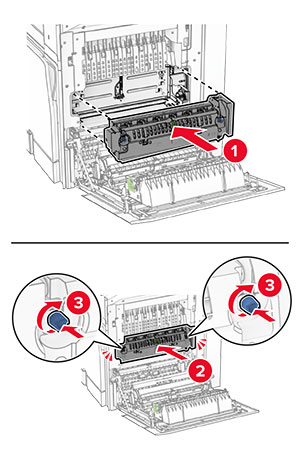
  6. 插入新的加熱熔合組件,直到其卡入定位,然後鎖定它。

    The fuser is aligned, inserted into the printer, and then locked.
  7. 關上 B 門。

  8. 將電源線的一端連接到印表機,然後將另一端連接到電源插座。

    標準請當心圖示 請當心—潛在受傷危險性: 為避免發生火災或觸電的危險,請將電源線連接至產品附近額定電壓相符且正確接地的電源插座,以便於使用。
  9. 開啟印表機電源。
更換紙匣組件

  1. 拉出使用過的紙匣組件。

    The used tray insert is removed from the printer with an upward motion.
  2. 拆開新紙匣組件的包裝。

  3. 插入新的紙匣組件。

    The new tray insert is inserted to the printer with a downward motion.

更換選購性 550 張紙匣組件中的尺寸導引夾

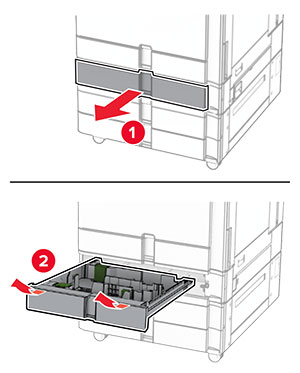
  1. 將紙匣組件拉出。

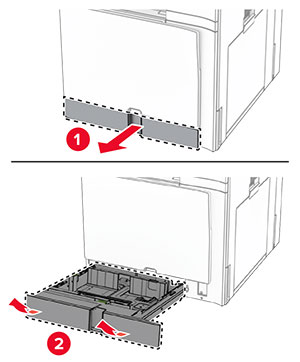
    The optional tray is removed from the printer.
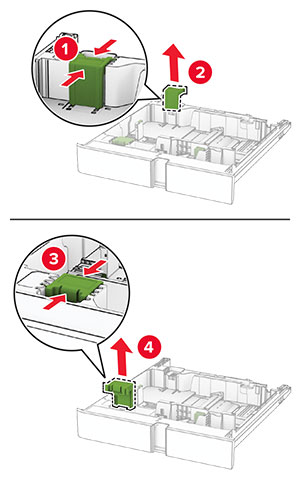
  2. 卸下使用過的尺寸導引夾。

    The used size guides are removed from the optional tray.
  3. 拆開新尺寸導引夾的包裝。

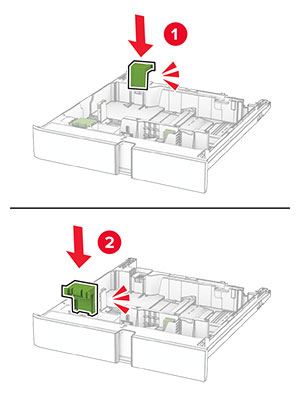
  4. 插入新的尺寸導引夾,直到其卡入定位。

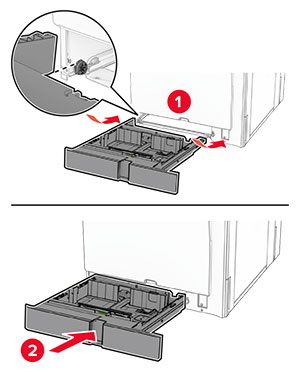
    The new size guides are inserted into the optional tray.
  5. 插入紙匣組件。

更換選購性 550 張紙匣組件中的尺寸導引夾

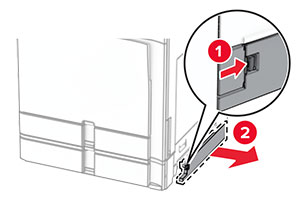
  1. 卸下使用過的紙匣組件蓋板。

    The used cover for the optional 550-sheet tray is removed.
  2. 拆開新紙匣組件蓋板的包裝。

  3. 插入新的紙匣組件蓋板,直到其卡入定位。

    The new cover for the optional 550-sheet tray is attached to the printer.

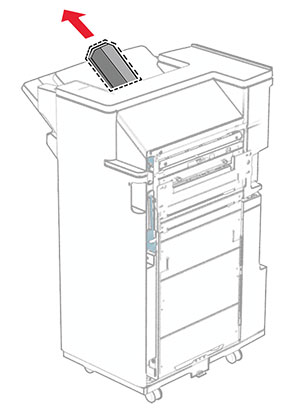
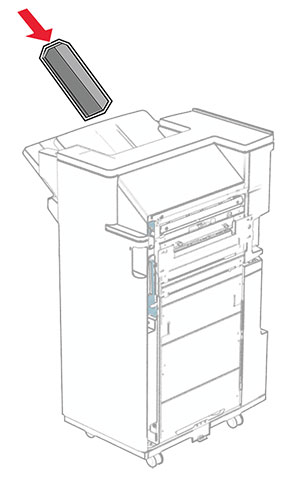
更換小冊子分頁裝訂器上層出紙槽延伸組件

  1. 卸下使用過的上層出紙槽延伸組件。

    The top bin extension of the finisher is pulled out.
  2. 拆開新上層出紙槽延伸組件的包裝。

  3. 插入新的上層出紙槽延伸組件。

    The top bin extension of the finisher is inserted.

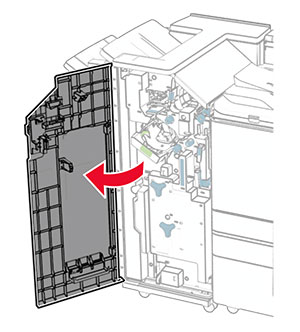
更換打孔箱

請注意: 視安裝的分頁裝訂器而定,打孔箱的外觀也會不同。
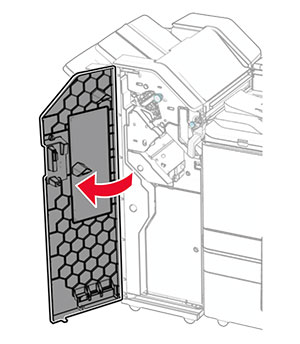
  1. 打開分頁裝訂器門。

    The finisher door is opened.
  2. 卸下使用過的打孔箱。

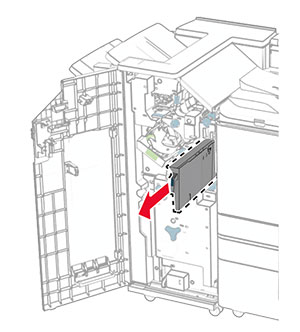
    The hole punch box is pulled out of the finisher.
  3. 拆開新打孔箱的包裝。

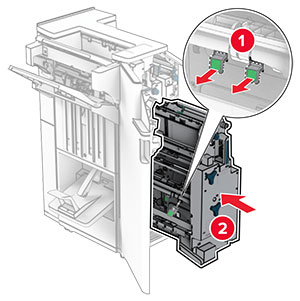
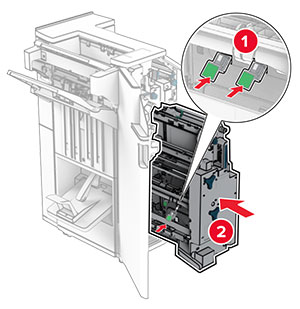
  4. 插入新的打孔箱。

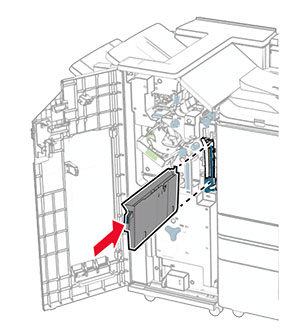
    The hole punch box is inserted into the finisher.
  5. 關閉分頁裝訂器門。

更換標準出紙槽

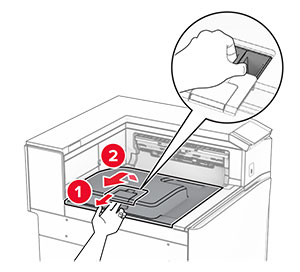
  1. 卸下使用過的標準出紙槽。

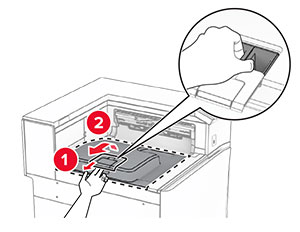
    The tray extender is opened, and then the used standard bin is pulled out from the printer.
  2. 拆開新標準出紙槽的包裝。

  3. 裝上新的標準出紙槽。

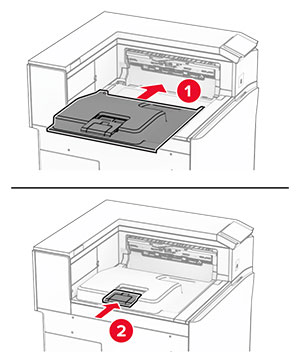
    The new standard bin is installed on the printer.

更換風扇蓋板

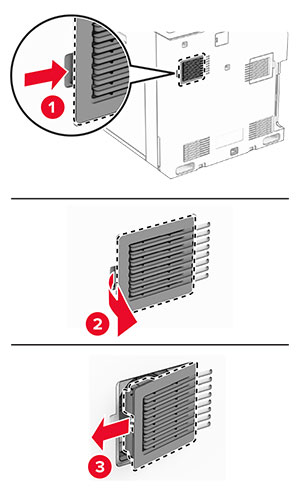
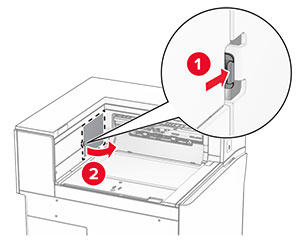
  1. 卸下使用過的風扇蓋板。

    The cover is pushed to the right, and then pulled away from the printer.
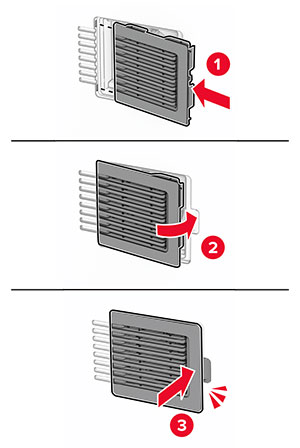
  2. 拆開新蓋板的包裝。

  3. 裝入新的蓋板,直到其卡入定位。

    The fan cover is attached to the printer.

更換右側蓋板

  1. 卸下使用過的右側蓋板。

    The door C is opened halfway, and the right cover is removed.
  2. 拆開新蓋板的包裝。

  3. 裝入新的蓋板,直到其卡入定位。

    The new right cover is aligned to the slot, and then the cover is attached.

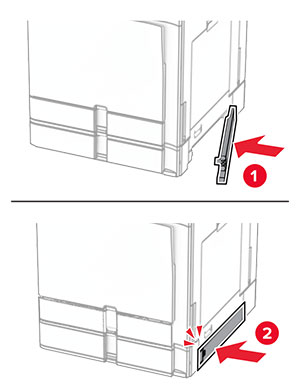
更換紙張傳輸連結器蓋板

  1. 卸下標準出紙槽。

    The tray extender is opened, and then the used standard bin is pulled out from the printer.
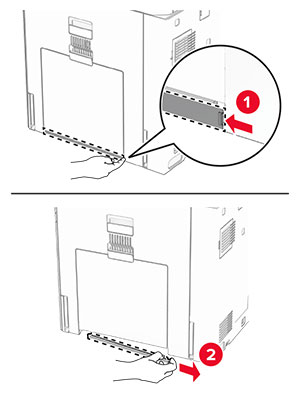
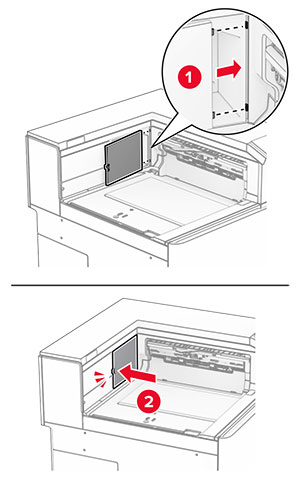
  2. 卸下使用過的紙張傳輸連結器蓋板。

    The used paper transport connector cover is pried, and then  removed.
  3. 拆開新連結器蓋板的包裝。

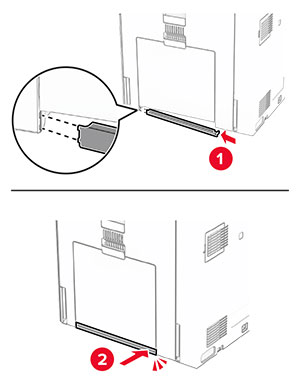
  4. 裝上新的連結器蓋板,直到其卡入定位。

    The new paper transport connector cover is aligned, and then attached to the printer.
  5. 裝上標準出紙槽。

    The standard bin is attached to the printer.

更換裝釘匣組件

更換分頁裝訂器中的裝釘匣

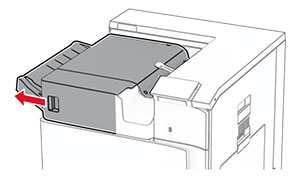
  1. 抓住握把 F,然後將分頁裝訂器滑至左側。

    The staple finisher is slid to the left.
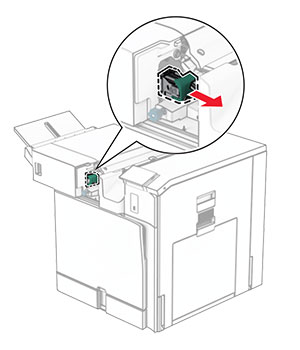
  2. 卸下裝釘匣容器。

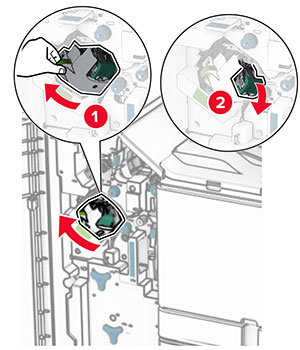
    The staple cartridge is pulled out of the finisher.
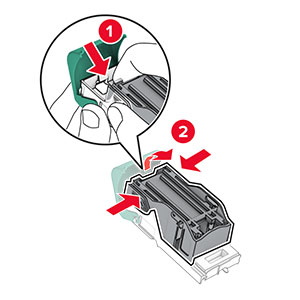
  3. 卸下空裝釘匣。

    The tabs on both sides and top of the cartridge are pressed to release it from the holder.
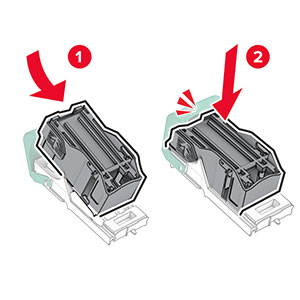
  4. 插入新的裝釘匣,直到其卡入定位。

    The cartridge is inserted into the holder.
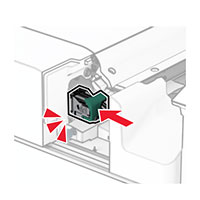
  5. 插入裝釘匣容器,直到其卡入定位。

    The cartridge holder is inserted into the finisher.
  6. 將分頁裝訂器滑至右側。

更換裝訂打孔分頁裝訂器中的裝釘匣

  1. 打開 H 門。

    The finisher door is opened.
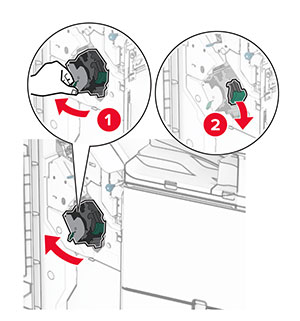
  2. 拉出綠色握把,然後卸下裝釘匣容器。

    The staple cartridge is pulled out of the finisher.
  3. 卸下空裝釘匣。

    The tabs on both sides and top of the cartridge are pressed to release it from the holder.
  4. 拆開新裝釘匣的包裝。

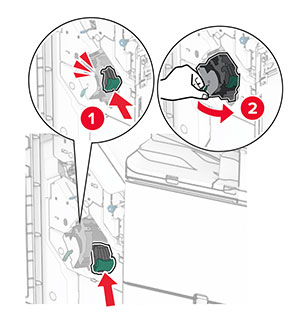
  5. 插入新的裝釘匣,直到其卡入定位。

    The cartridge is inserted into the holder.
  6. 插入裝釘匣容器,直到其卡入定位。

    The cartridge holder is inserted into the finisher.
  7. 關上 H 門。

更換小冊子分頁裝訂器中的裝釘匣

  1. 打開 H 門。

    The finisher door is opened.
  2. 拉出綠色握把,然後卸下裝釘匣容器。

    The staple cartridge is pulled out of the finisher.
  3. 卸下空裝釘匣。

    The tabs on both sides and top of the cartridge are pressed to release it from the holder.
  4. 拆開新裝釘匣的包裝。

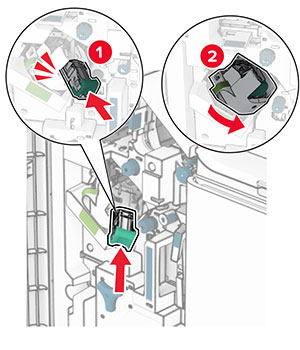
  5. 插入新的裝釘匣,直到其卡入定位。

    The cartridge is inserted into the holder.
  6. 插入裝釘匣容器,直到其卡入定位。

    The cartridge holder is inserted into the finisher.
  7. 關上 H 門。

更換小冊子分頁裝訂器中的裝釘匣容器

  1. 打開分頁裝訂器門。

    The finisher door is opened.
  2. 拉出小冊子製作器,然後卸下使用過的裝釘匣容器。

    The booklet maker is pulled out of the finisher, and then the used staple cartridge holders are removed.
  3. 拆開新裝釘匣容器的包裝。

  4. 插入新的裝釘匣容器。

    The staple cartridge holder is inserted, and then pushed into place.
  5. 插入小冊子製作器,然後關閉分頁裝訂器門。

重新設定耗材用量計數器

  1. 在控制面板中,導覽至設定 > 裝置 > 維護 > 配置功能表 > 耗材用量和計數器

  2. 選擇您要重設的計數器。

請當心—潛藏損壞危險性: 沒有回收計劃合約條款的耗材與零件可能可以重設與再製造。然而,製造商的保固不涵蓋因使用非原廠耗材或零件造成的任何損壞。若針對未適當再製的耗材或零件重設計數器,可能會造成印表機損壞。重設耗材或零件計數器之後,印表機可能會顯示錯誤訊息,指示出現重設項目。