Adding printers
-
From DDU, click Add New.
-
Type the deployment name and description.
-
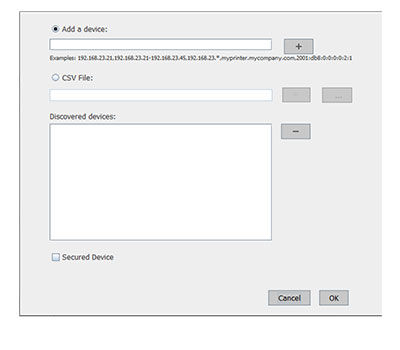
Click Edit Device List.
-
Do either of the following:
Note: To skip adding printers, click Cancel. If this task is skipped, you are prompted to add them before creating workflow. For more information on adding devices after creating a workflow, see Adding printers after creating a deployment workflow.Add devices manually
-
Select Add a device.
-
In the "Add a device" field, type the IP addresses or host names of the devices, and then click
 .
.Use the following formats to add IP addresses:
-
(wildcards for only the last two octets)
-
(single IP address)
-
(IP address range)
-
(host name)
-
(single full IPv6 address; wildcards are not supported)
Note: To remove an IP address or host name, select the IP address or host name in the "Discovered devices" list, and then click .
. -
Add devices using the CSV file
-
Select CSV File.
-
Browse to the CSV input file.
Note: The default file name is . For information on creating a CSV file, see Creating CSV files.
-
-
If necessary, select Secured Device to prompt the user to type the authentication credentials used to access secured devices when deploying the workflow.
-
Click OK.
After a printer is added, DDU checks if the printer is online. If it is not, then a error message appears.